Getting Started with CareKeeper
Learn the basics of CareKeeper by creating your first caree and logging your first activity.
What You'll Learn
By the end of this tutorial, you'll know how to:
- Install CareKeeper on your iPhone and Apple Watch
- Set up your iCloud account for sync
- Navigate the app's main interface
- Understand the core concepts (carees, activity types, activities)
Prerequisites
- iPhone running iOS 18.0 or later
- Optional but recommended: Apple Watch running watchOS 10.0 or later
- iCloud account signed in
Step 1: Install CareKeeper
On iPhone
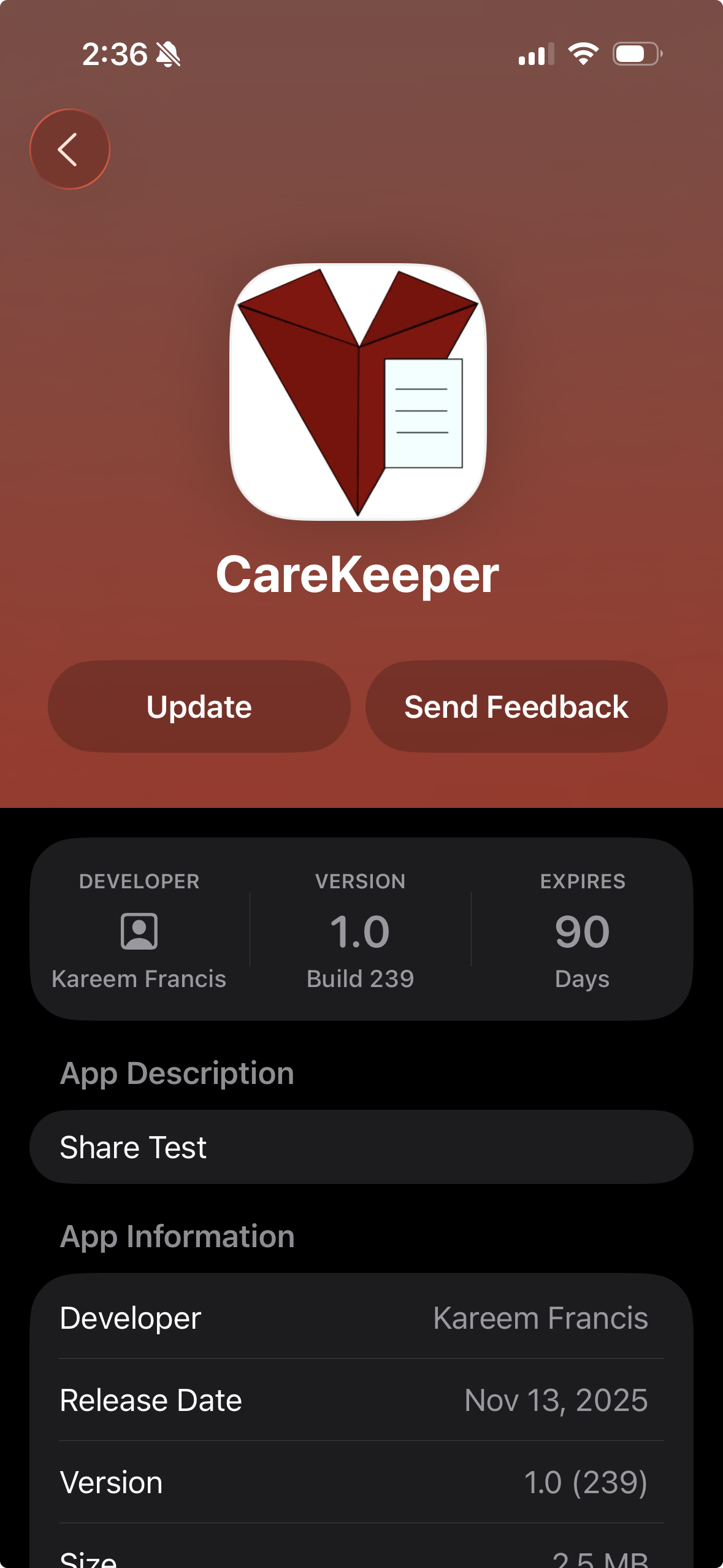
- Open the App Store on your iPhone
- ~~Search for "CareKeeper"~~
- Search for "Test Flight"
- Tap Get or the download button
- Authenticate with your iCloud account
- Wait for the app to install
On Apple Watch
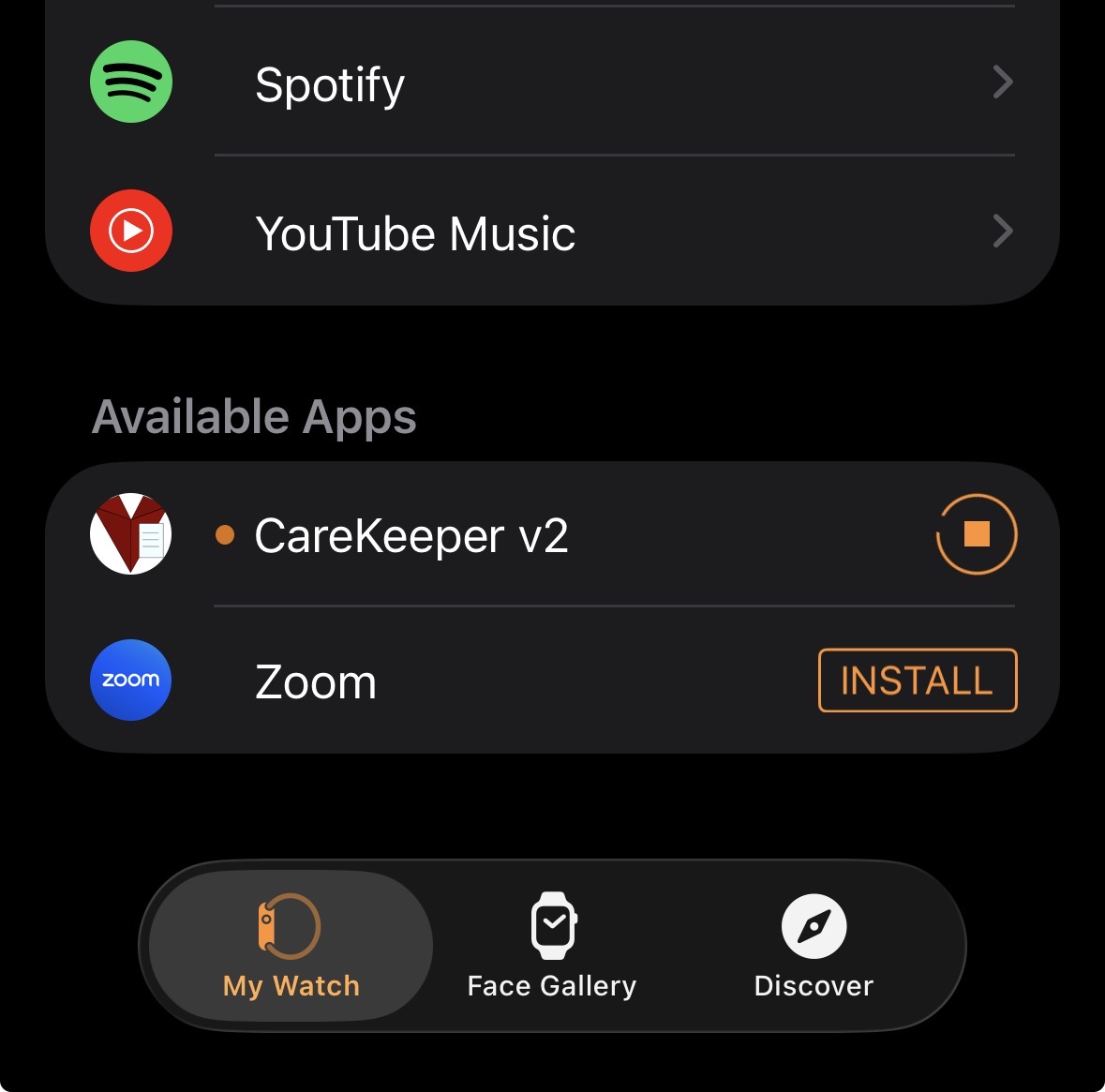
CareKeeper automatically installs on your Apple Watch when you install it on your iPhone. If it doesn't:
- Open the Watch app on your iPhone
- Scroll down to find CareKeeper
- Tap Install
Step 2: Launch CareKeeper
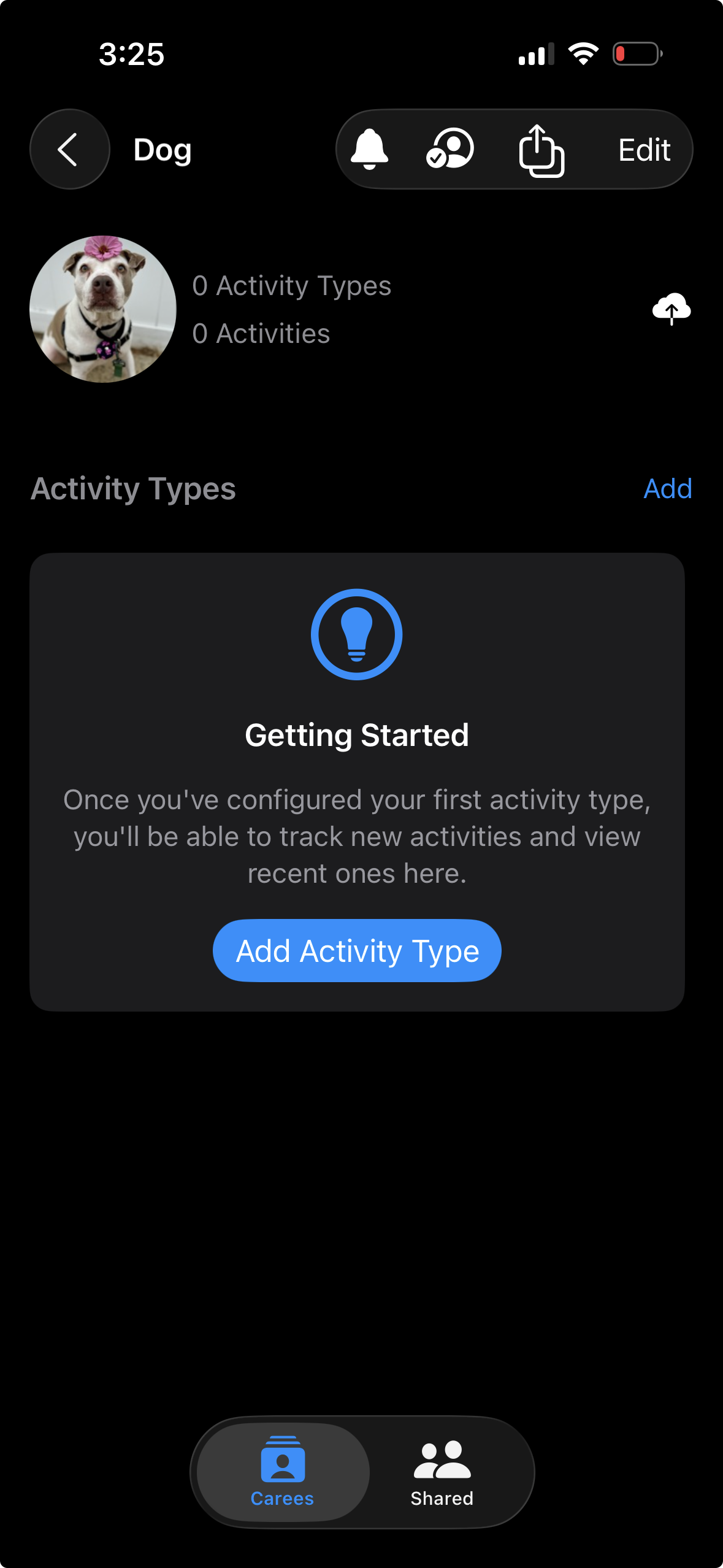
- Tap the CareKeeper icon on your iPhone home screen
- You'll see a welcome screen
- Tap Get Started
Step 3: Grant Permissions
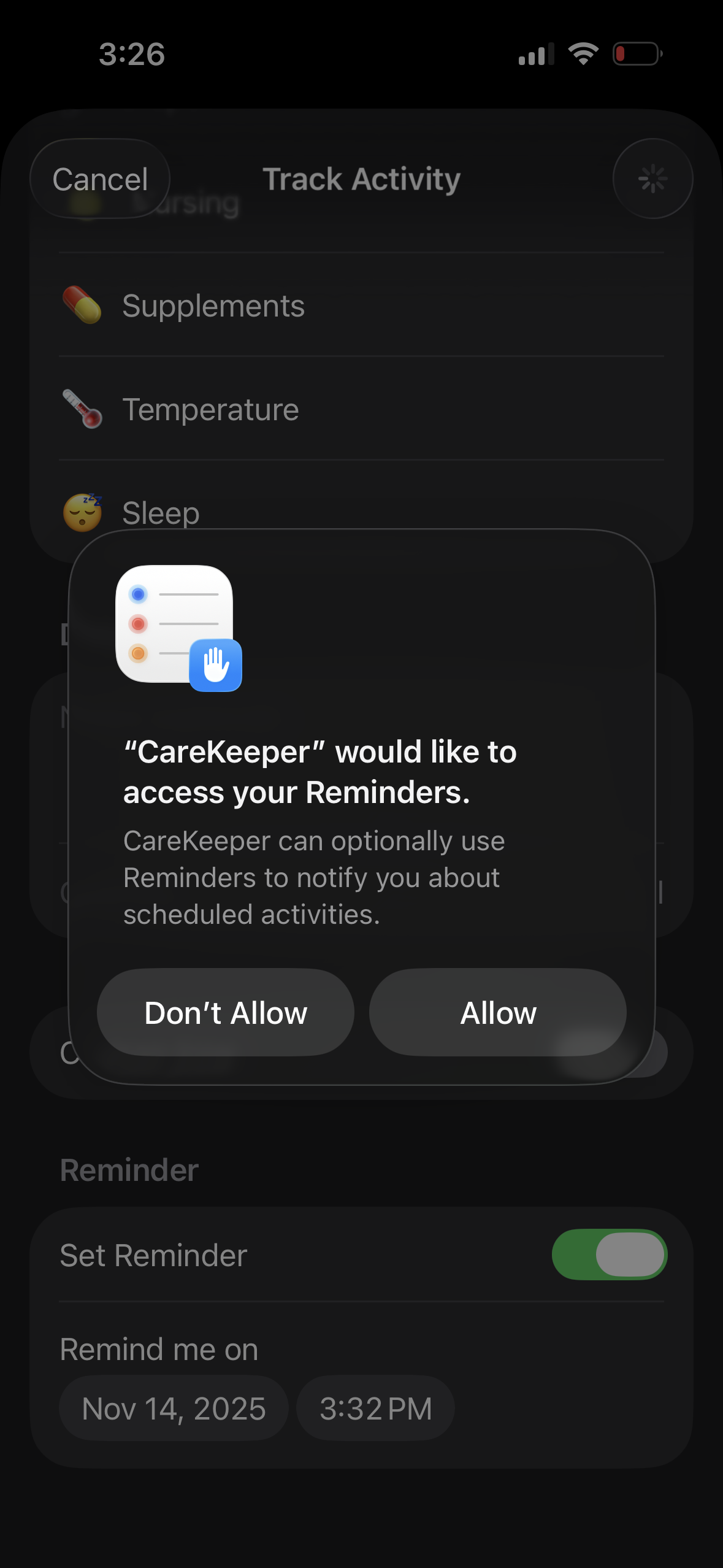
CareKeeper may request permissions for:
- Notifications: To alert you about shared activities from other caregivers
- Location: To track where activities occurred (optional, only if you create activity types with location tracking)
Permissions
You can always change these permissions later in Settings > CareKeeper
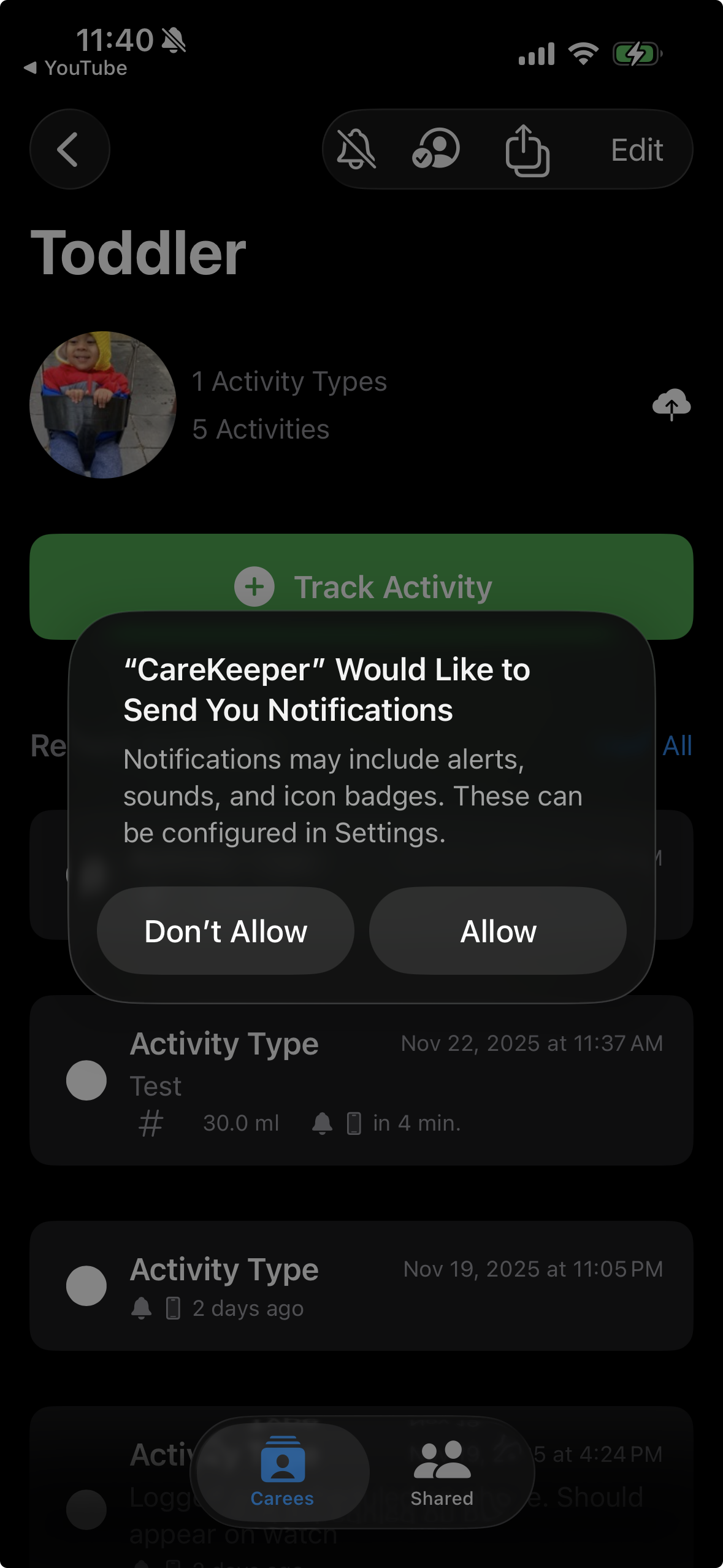
Step 4: Verify iCloud Sync
CareKeeper uses iCloud to sync your data across devices and enable sharing:
iCloud Required
CareKeeper requires iCloud to sync data between devices and share with other caregivers. Make sure you're signed into iCloud in Settings > [Your Name] > iCloud.
Core Concepts
Before creating your first caree, let's understand the key concepts:
Caree
A caree is the person (or pet!) you're tracking care for. Examples: - Your baby - Your dog
Each caree can have multiple activity types.
Activity Type
An activity type is a category of activity you want to track. Examples: - Feeding (with quantity in oz/ml) - Diaper change - Bottle feeding (with volume) - Walk (with location)
Activity types are customizable with: - Name and icon - Optional quantity tracking (e.g., "3.5 oz") - Optional location tracking (e.g., "walked at Central Park")
Activity
An activity is a single instance of tracking. Examples: - "Fed 4 oz at 2:30 PM" - "Changed diaper at 3:15 PM" - "Bottle fed 4oz at 8:00 AM"
Next Steps
Now that you understand the basics, you're ready to: