Creating Your First Caree
In this tutorial, you'll learn how to create your first caree and understand how to organize your care tracking.
What You'll Learn
- How to create a new caree
- How to add a profile photo
- How to edit caree details
- How to reorder carees
Prerequisites
- CareKeeper installed and set up (see Getting Started)
Step 1: Open the Carees List
- Launch CareKeeper on your iPhone
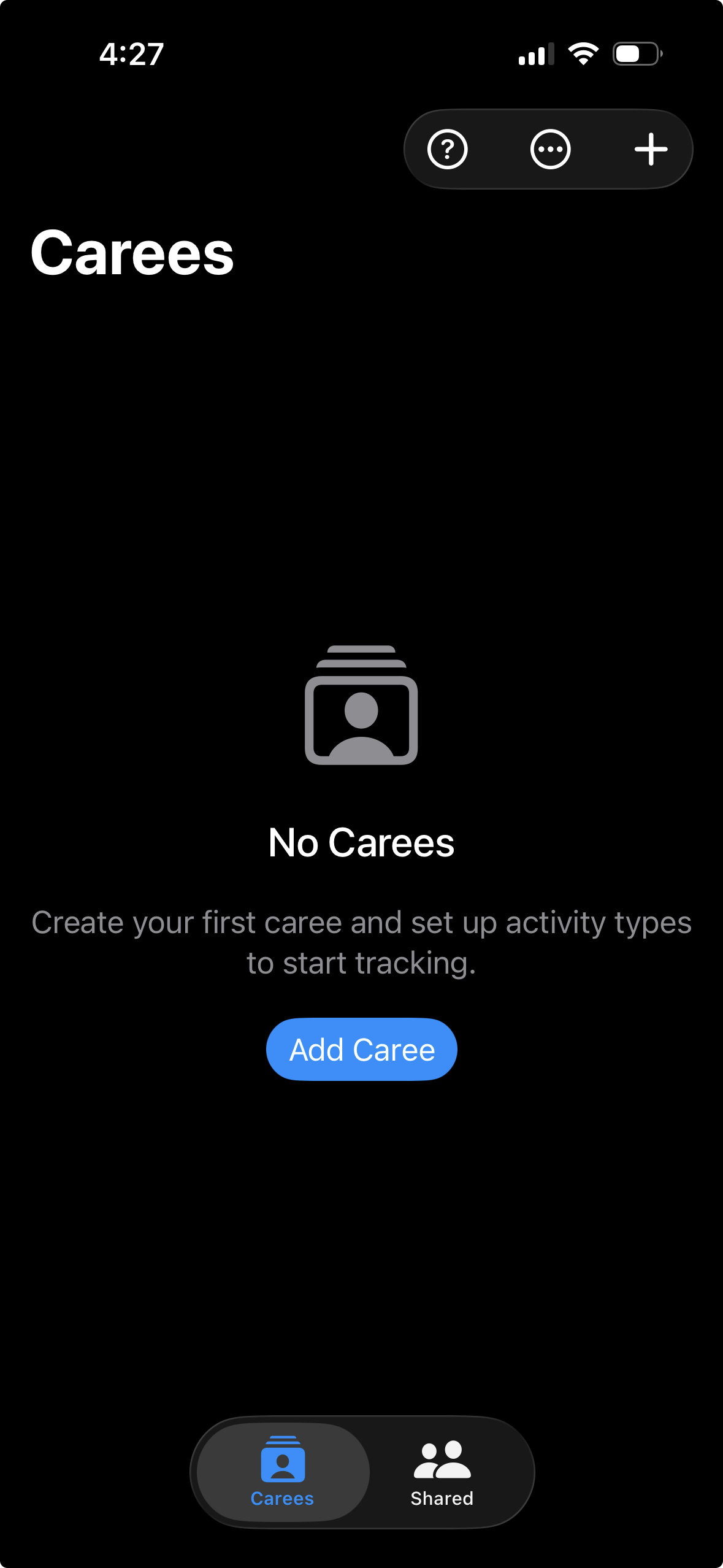
- You'll see the main Carees tab
- If this is your first time, the list will be empty with a message like "No carees yet"
Step 2: Create a New Caree
- Tap the + button in the top-right corner
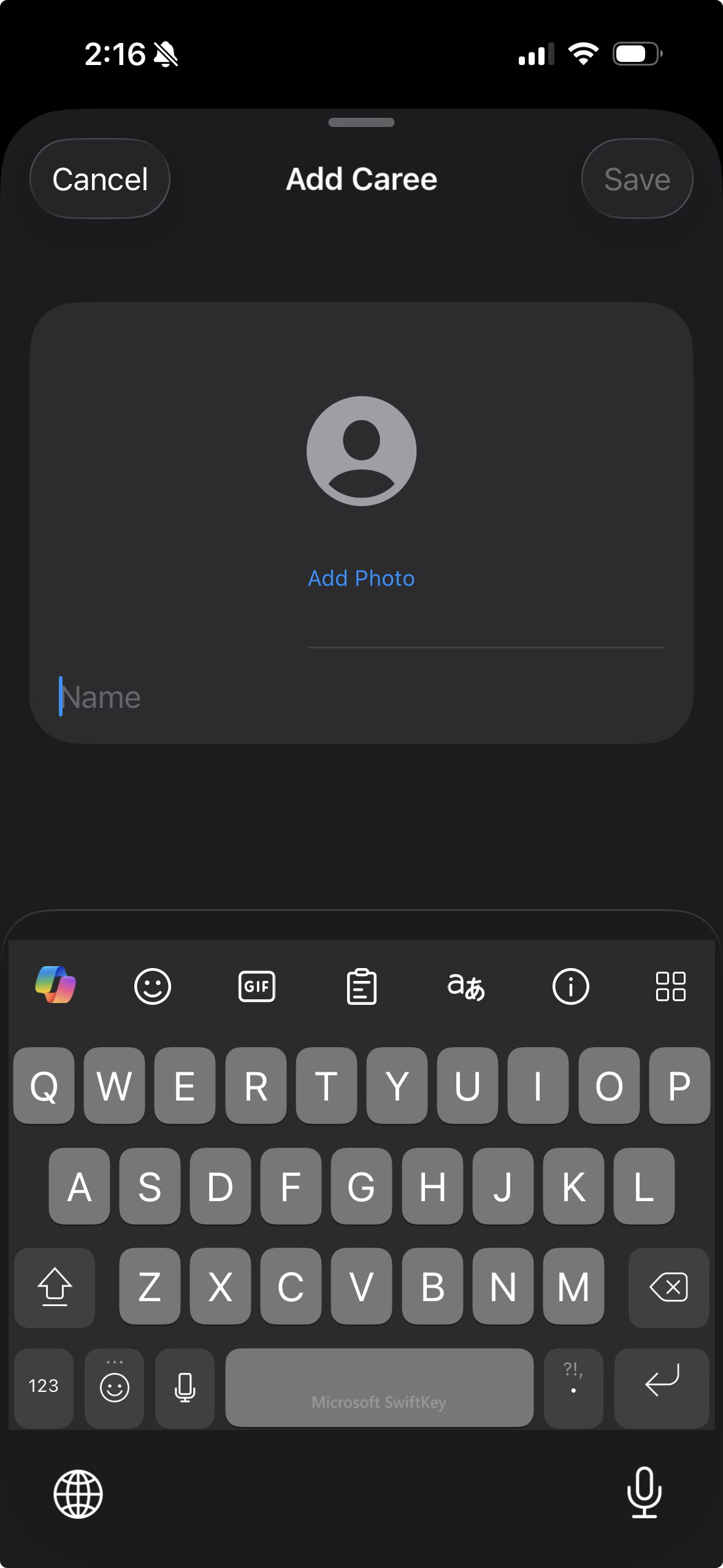
- You'll see the "New Caree" form
Step 3: Fill in Caree Details
Name (Required)
- Tap the Name field
- Enter the caree's name (e.g., "Emma", "Max the Dog", "Mom")
- The name will appear in lists and on the watch app
Profile Photo (Optional)
- Tap Add Photo
- Choose from:
- Take Photo: Use your camera
- Choose Photo: Select from your photo library
- Crop and adjust as desired
- Tap Choose to confirm
Photo Privacy
Profile photos are synced via iCloud and visible to anyone you share this caree with. Choose appropriate photos if sharing with other caregivers.
Step 4: Save Your Caree
- Tap Save in the top-right corner
- Your new caree appears in the list
- You'll see a success message briefly
Syncing
Your caree is automatically synced to iCloud and will appear on all your devices within seconds.
Step 5: View Caree Details
- Tap on your newly created caree
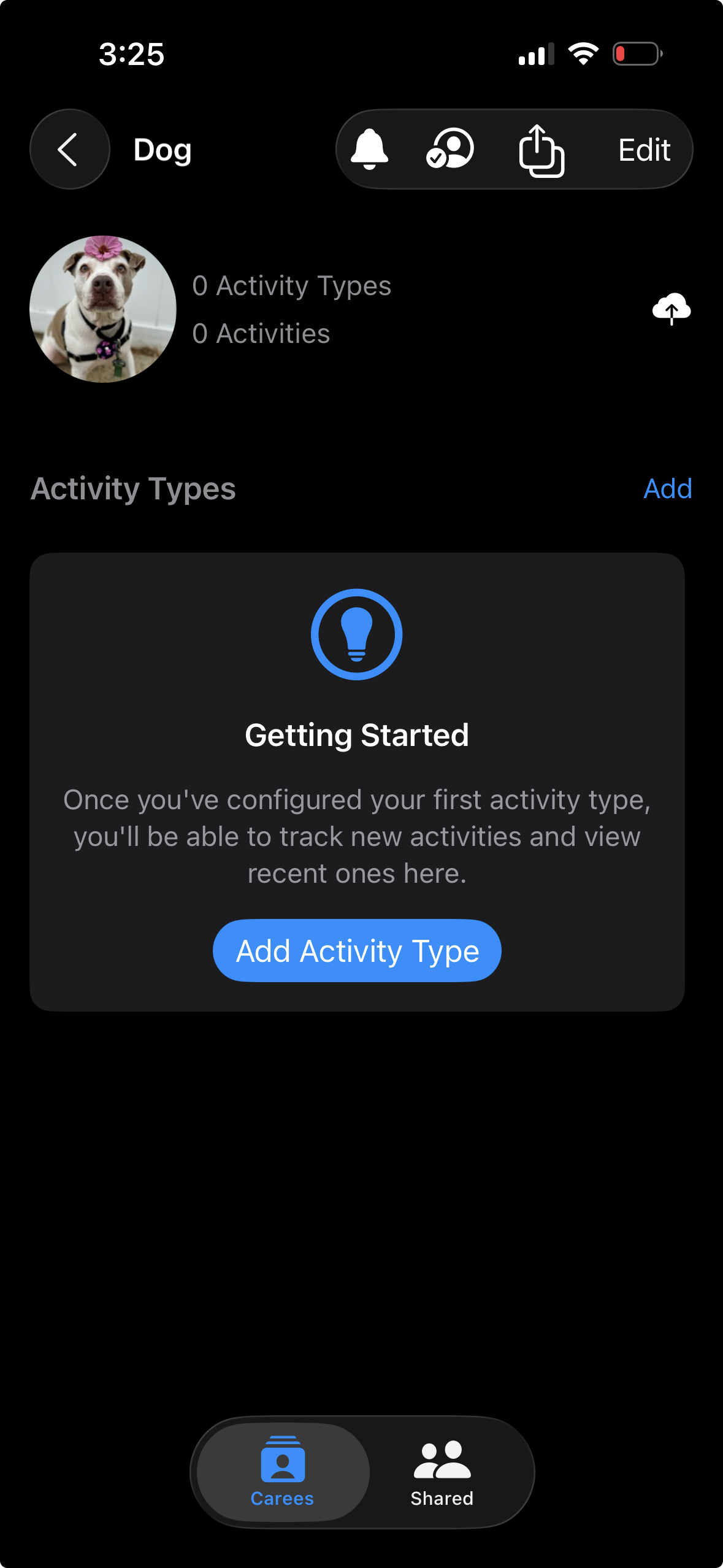
- You'll see the caree detail view with:
- Profile photo (if added)
- Name
- Activity Types section (empty for now)
- Recent Activities (empty for now)
Managing Carees
Edit a Caree
- Open the caree detail view
- Tap Edit in the top-right corner
- Modify the name or photo
- Tap Save
Delete a Caree
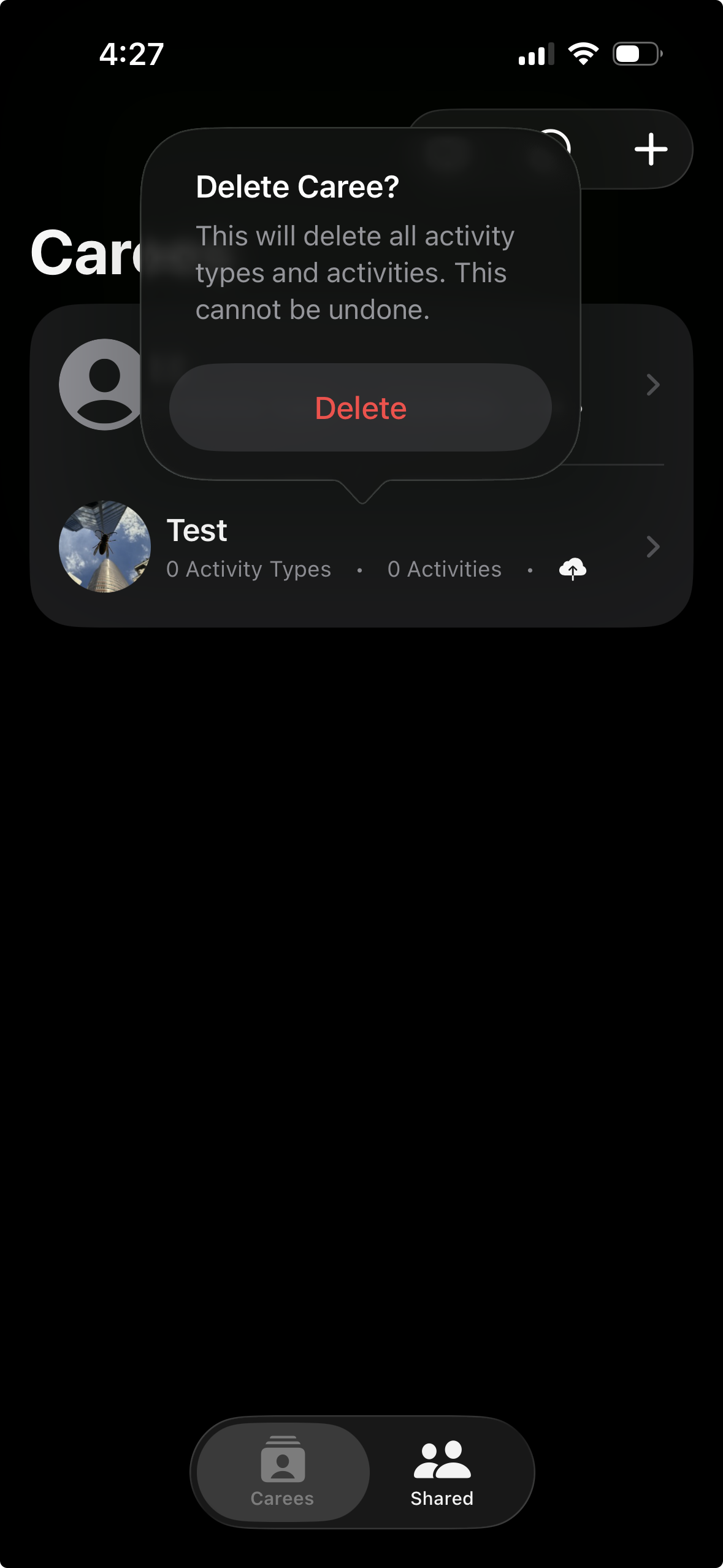
Permanent Deletion
Deleting a caree also deletes all its activity types and activities. This cannot be undone.
- Open the caree detail view
- Tap Edit in the top-right corner
- Scroll down and tap Delete Caree
- Confirm the deletion
Reorder Carees
If you have multiple carees, you can change their order:
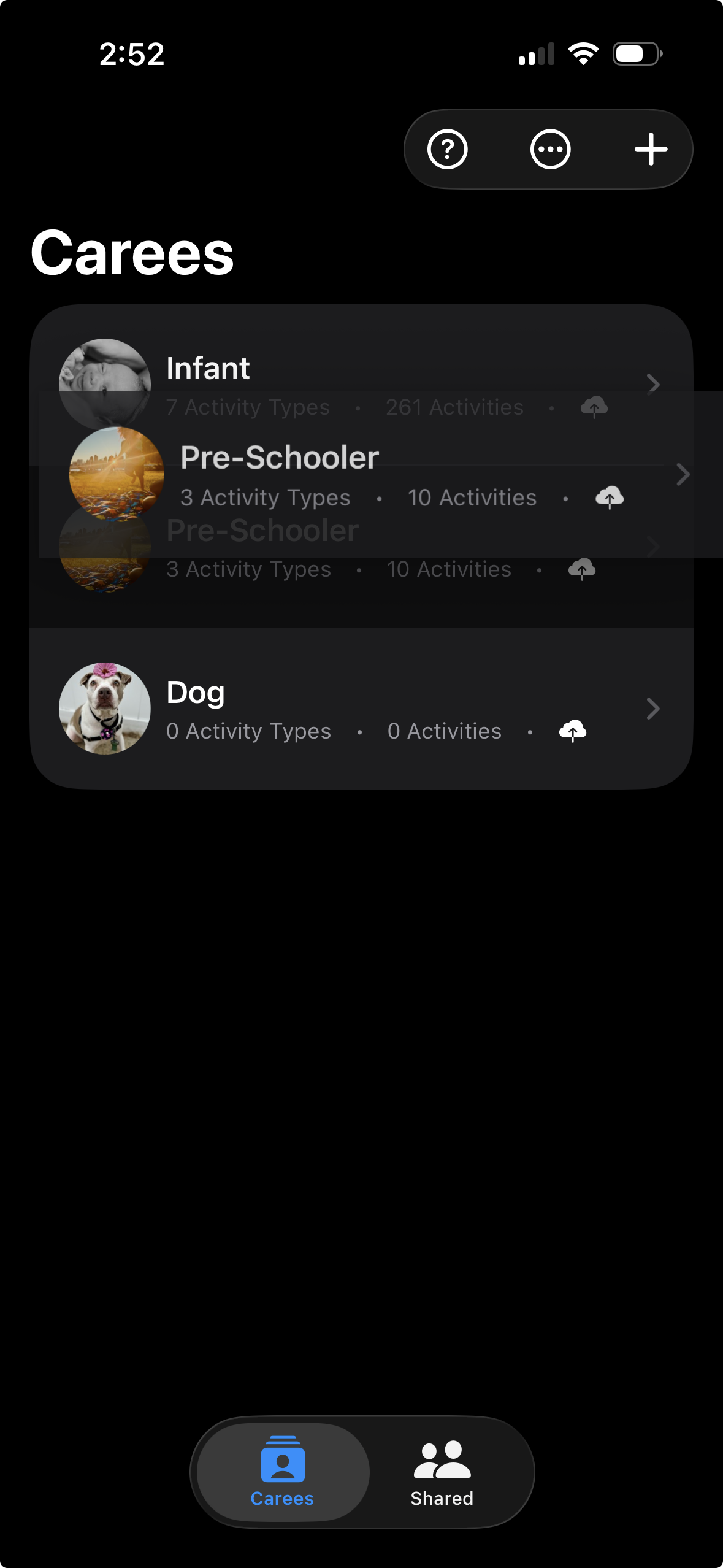
- In the Carees list, tap and hold on a caree until it starts to hover
- Drag it to the new desired position
- Drop to reorder
Reordering lists
You can reorder both the Carees and Activity Types lists
Pull-to-refresh lists
Most views in the app support pull-to-refresh to fetch latest data and refresh cache
What's Next?
Now that you have a caree, you're ready to:
- Create activity types: Define what activities you want to track (feeding, diaper changes, sleep, etc.)
- Start tracking: Log your first activity
Continue to the next tutorial: Setting Up a Feeding Tracker →
Troubleshooting
Caree Not Appearing on Watch
- Open the CareKeeper watch app (it may need to launch once to sync)
- Wait a few seconds for iCloud sync to complete
- Try pulling down to refresh on the watch