Setting Up a Feeding Tracker
In this tutorial, you'll learn how to create custom activity types to track feeding for your caree. This is a practical example that demonstrates CareKeeper's flexible tracking system.
What You'll Learn
- How to create activity types
- How to enable quantity tracking
- How to use quantity units
- How to track your first activity
- How to use the watch app for quick tracking
Prerequisites
- You have created a caree to track for
Scenario
You're tracking feeding for a baby. You may want to record things like: - Bottle feeding with quantity in ounces - Nursing (left/right side) - Solid foods
This tutorial will focus on the bottle feeding setup.
Approach 1: Simple Setup (One Activity Type)
Best for: Primary use on iPhone where typing is easy
Setup
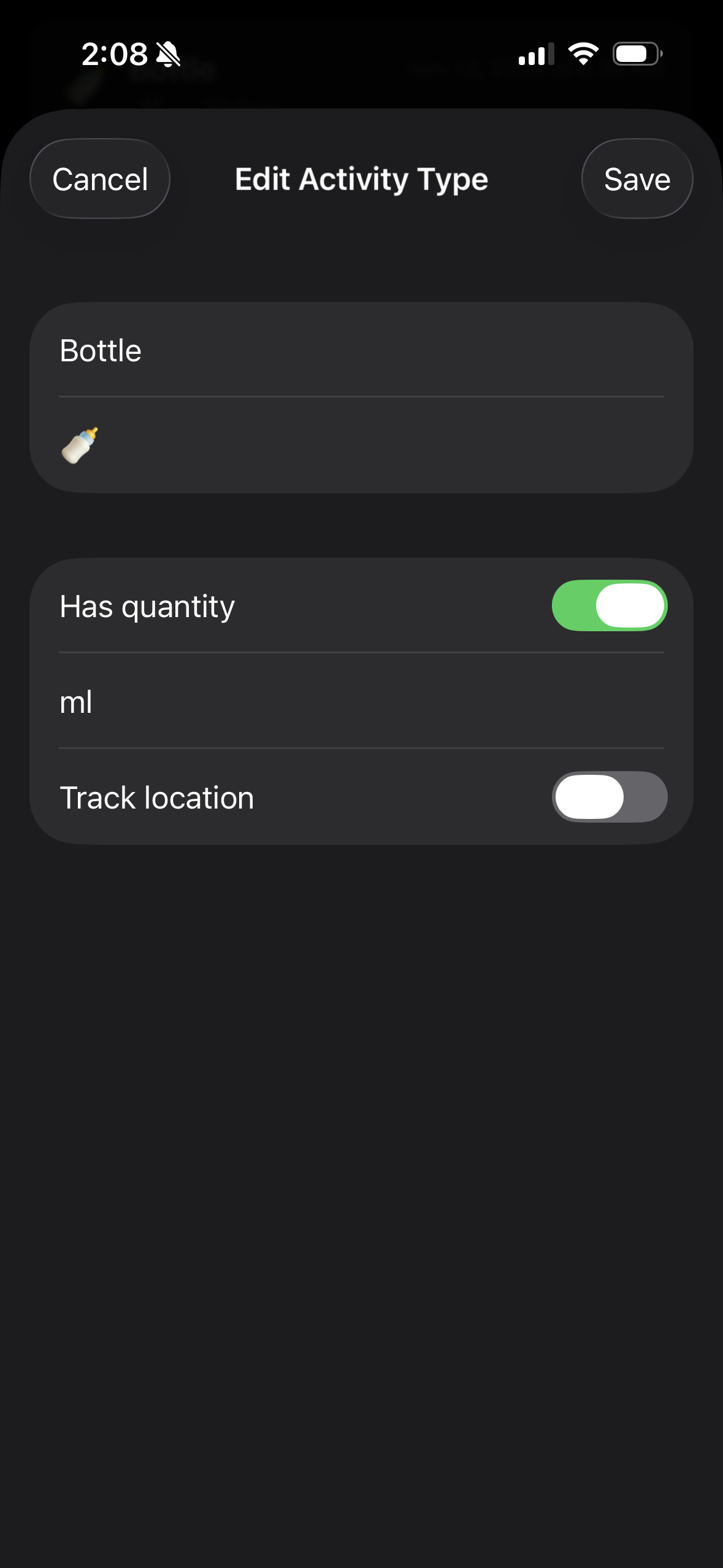
Create a single "Bottle" activity type with quantity enabled.
Logging an Activity
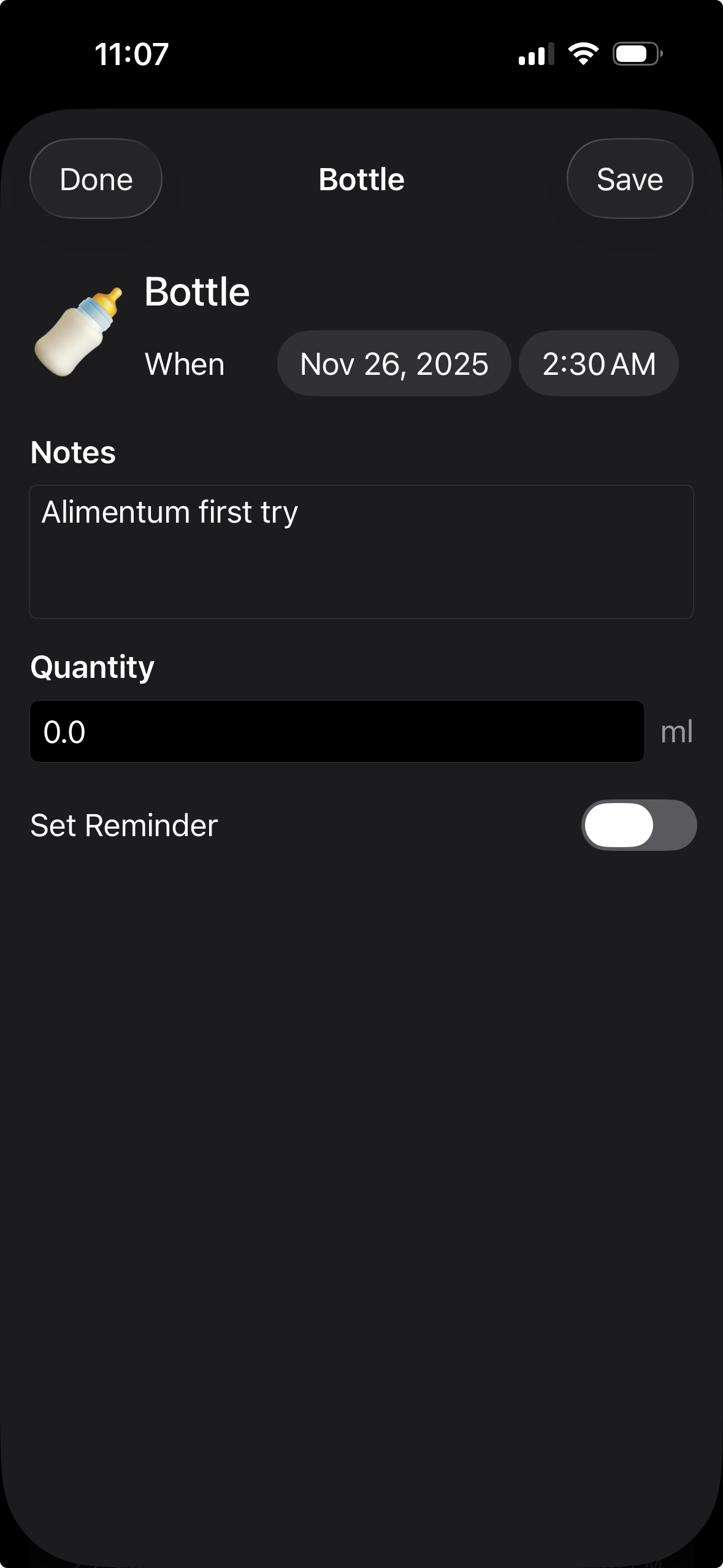
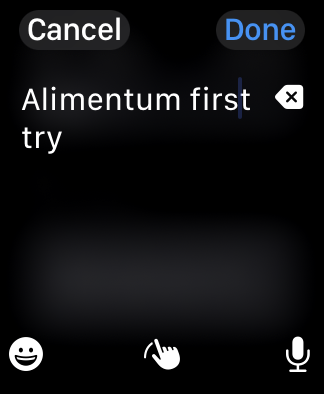
Use the notes field to specify the type: - "Formula" - "Pumped milk" - "Donor milk"
Pros & Cons
Pros: - Simple, minimal setup - All feeding in one list - Quick to set up
Cons: - Requires typing when using Apple Watch - Can't quickly see breakdown by type - Since notes are not a required field, its easy to forget - ...but you can always edit to add them later on either the phone or watch
Approach 2: Granular Setup (Multiple Activity Types)
Best for: Apple Watch usage or wanting type-specific analytics
Setup
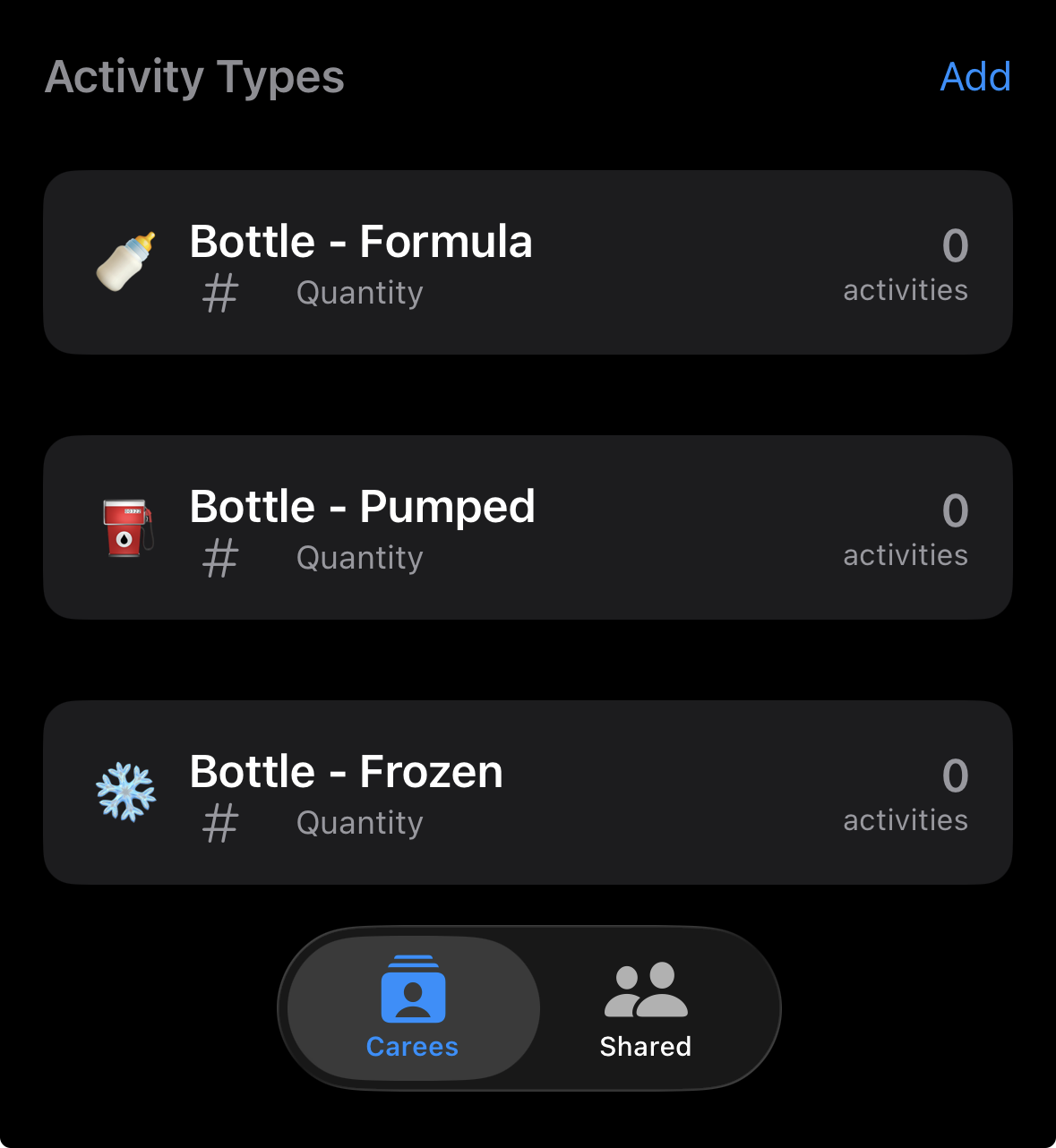
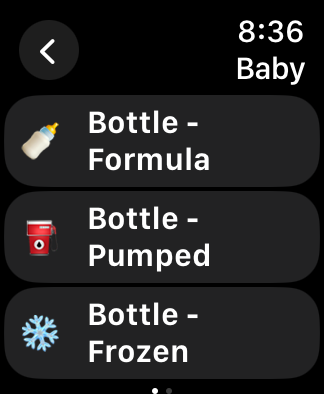
Create separate activity types for each feeding type: - Bottle - Formula (with quantity) - Bottle - Pumped (with quantity) - Bottle - Frozen (with quantity)
Logging an Activity
Just tap the appropriate activity type and enter quantity - no typing needed!
Pros & Cons
Pros: - Works well on Apple Watch - no typing required - Easy to see breakdown (5 formula, 3 fresh, 2 frozen today) - Forces you to specify type (can't forget) - Can set different default quantities per type
Cons: - More initial setup - More activity types to scroll through - Slightly more taps on iPhone -
Hybrid Approach
You can combine both: - Use granular types for most common actions - Add a "Bottle - Other" with notes for rare cases
Track from Apple Watch
The watch app makes tracking even faster:
- Open CareKeeper on your Apple Watch
- Tap on your caree
- Tap Track
- You'll see all activity types as large buttons
Quick Track (No Quantity)
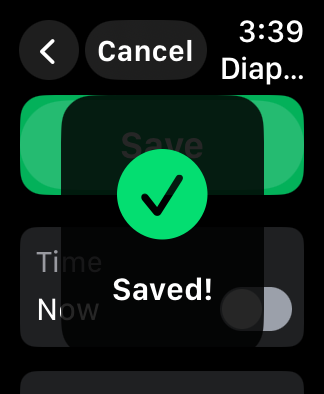
For activity types without quantity: 1. Tap the activity type button (e.g., "Solids") 2. Tap "Save". 3. You'll see a confirmation checkmark
Track with Quantity
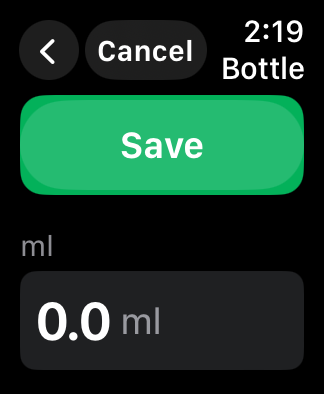
For activity types with quantity: 1. Tap the activity type button (e.g., "Bottle") 2. Use the Digital Crown to adjust the quantity 3. Turn clockwise to increase, counterclockwise to decrease 4. Tap Save or press the crown
Digital Crown Tips
- Spin faster for larger jumps
- Spin slowly for precise adjustments
- The current value is shown prominently
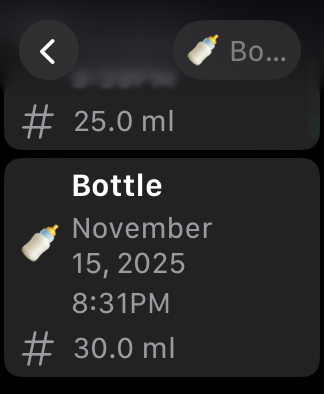
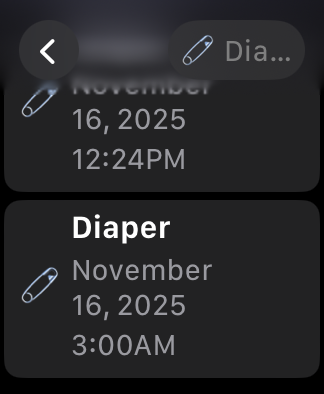
Viewing Activity History
To see all activities for a caree:
- Open the caree detail view
- Scroll to "Recent Activities"
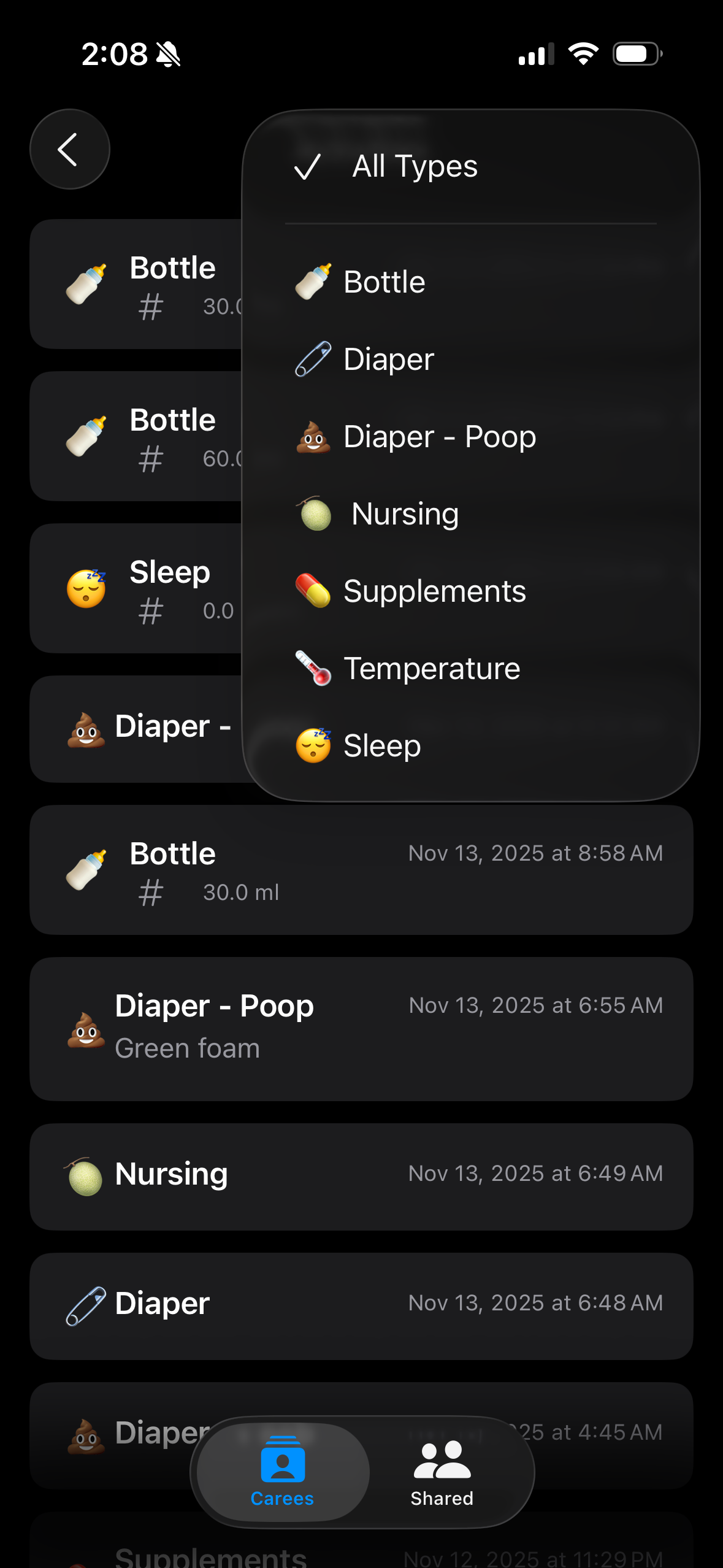
- Tap See All Activities to view complete history
Activity List Features
- Filter by type: Tap the filter button to show only specific activity types
- Details: Tap an activity to see and/or edit full details and notes
Reordering Activity Types
Put your most-used activity types at the top:
- Tap Edit in the Activity Types section
- Drag the ☰ handle to reorder
- Tap Done
[SCREENSHOT: Reordering activity types]
Watch App Order
The order you set on iPhone is reflected on your watch, so put frequently-used types at the top for quick access.
What's Next?
Now you know how to: - ✅ Create custom activity types - ✅ Configure quantity tracking - ✅ Track activities on iPhone and watch - ✅ View activity history
Learn More
- Create custom activity types - Learn about location tracking and advanced options
- Share with other caregivers - Collaborate with family, partners, or care providers
- Export your data - Get your tracking data out of CareKeeper
Troubleshooting
"Activity Type Not Showing on Watch"
- Open the CareKeeper watch app and wait a few seconds for sync
- Try force-quitting and reopening the watch app
- Check that your watch is connected to your iPhone
Tutorials Complete! You're now ready to explore CareKeeper on your own. Check out the How-To Guides for specific tasks.