How to Track an Activity
This guide covers all the ways to track activities in CareKeeper, from simple one-tap tracking to detailed entries with notes and locations.
Quick Steps (iPhone)
- Open your caree's detail view
- Tap Track Activity
- Tap an activity type
- Adjust quantity/time if needed
- Tap Save
Quick Steps (Watch)
- Open CareKeeper on your watch
- Tap your caree
- Tap Track Activity
- Tap an activity type button
- Adjust quantity with Digital Crown if needed
- Tap Save or press crown
Tracking on iPhone
Basic Activity (No Quantity/Location)
For simple tracking like diaper changes or naps:
- Open your caree's detail view
- Tap the activity type (e.g., "Diaper Change")
- The tracking form appears with time set to "Now"
- Tap Save
[SCREENSHOT: Simple activity tracking form]
Activity with Quantity
For tracking amounts (feeding, water, etc.):
- Tap the activity type (e.g., "Bottle")
- Tap the quantity field and enter the amount using the number pad
- The unit is shown automatically (e.g., "oz")
- Tap Save
[SCREENSHOT: Quantity entry with number pad]
Quick Entry
The number pad includes a decimal point for precise tracking (e.g., "3.5 oz").
Activity with Location
For activities with location tracking enabled:
- Tap the activity type (e.g., "Walk")
- CareKeeper automatically captures your current location
- You'll see "📍 Location captured" or a loading indicator
- Enter quantity if applicable
- Tap Save
[SCREENSHOT: Activity with location capture]
Location Permission
CareKeeper needs location permission to capture locations. Grant permission in Settings > CareKeeper > Location if prompted.
Location Capture After Granting Permission
Location may not be captured immediately after granting location permissions. Toggle the location toggle off and back on again. On a phone, you should see lat and long coordinates. On a watch, you should see “Location captured” or a similar message
Customizing Date and Time
To track an activity that happened earlier:
- Tap the Date/Time field
- Use the date picker to select:
- Date (scroll to select day)
- Time (scroll hours and minutes)
- Tap outside the picker to confirm
- Complete the rest of the form
- Tap Save
[SCREENSHOT: Date/Time picker]
Backfilling Data
Useful when you forgot to track something earlier: "Oh, I fed her at 2pm but forgot to log it."
Adding Notes
Notes let you record additional details:
- Fill in the activity as normal
- Tap the Notes field
- Type any relevant information:
- Tap Save
[SCREENSHOT: Notes field with keyboard]
Notes Are Optional
Try to structure your Activity Types so that most activities don't need notes (info captured in activity type name)
Tracking on Apple Watch
The watch app is designed for quick tracking during busy moments.
Opening the Watch App
- Raise your wrist or press the Digital Crown
- Find and tap the CareKeeper icon
- You'll see your caree list
[SCREENSHOT: Watch app caree list]
Simple One-Tap Tracking
For activities without quantity:
- Tap your caree
- Tap the activity type button
- You'll see a checkmark confirmation
- Activity is tracked immediately!
[SCREENSHOT: Watch showing activity confirmation]
Tracking with Quantity (Digital Crown)
For activities with quantity:
- Tap your caree
- Tap the activity type button
- The quantity screen appears
- Turn the Digital Crown to adjust:
- Clockwise: increase
- Counterclockwise: decrease
- Faster spin: larger jumps
- Tap Save or press the crown
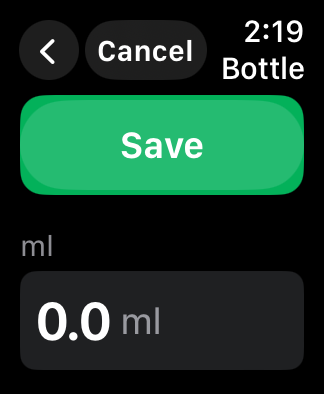
Digital Crown Control
The Digital Crown is the best way to adjust values on Apple Watch—much easier than trying to type!
Custom Time on Watch
By default, activities are tracked at the current time. To change:
- After selecting activity type, swipe down
- Toggle Custom Time to ON
- Use the Digital Crown to scroll the time
- Tap Save
[SCREENSHOT: Watch custom time selection]
Make sure time input is selected
When you are setting both a quantity and a custom time, tap the time input to make sure it is selected. Otherwise, you may accidentally adjust the quantity instead.
Viewing Tracked Activities
On iPhone
Recent Activities (Caree Detail View): - Shows the last 5-10 activities - Tap See All Activities for complete history
[SCREENSHOT: Recent activities list]
Activity List View: - All activities in reverse chronological order - Filter by activity type using the filter button - Swipe left to edit or delete
[SCREENSHOT: Full activity list with filter]
On Watch
- Open CareKeeper on your watch
- Tap your caree
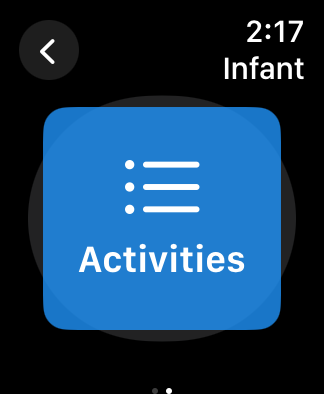
- Swipe left on the list of activity types to see the Activities button
- Tap Activities
- Scroll through activities or use the Digital Crown

Editing Activities
You can edit activities after tracking:
On iPhone
- Open the activity list
- Tap on the activity
- Tap Edit from the toolbar
- Modify quantity, time, notes, or location
- Tap Save
[SCREENSHOT: Swipe left to edit activity]
Alternatively: 1. Tap the activity to open detail view 2. Tap Edit in the top-right 3. Make changes 4. Tap Save
[SCREENSHOT: Activity detail view with edit button]
On Watch
- Open the activity list
- Tap the activity
- Tap Edit
- Use Digital Crown to adjust quantity or time
- Tap Save
[SCREENSHOT: Watch activity edit view]
Deleting Activities
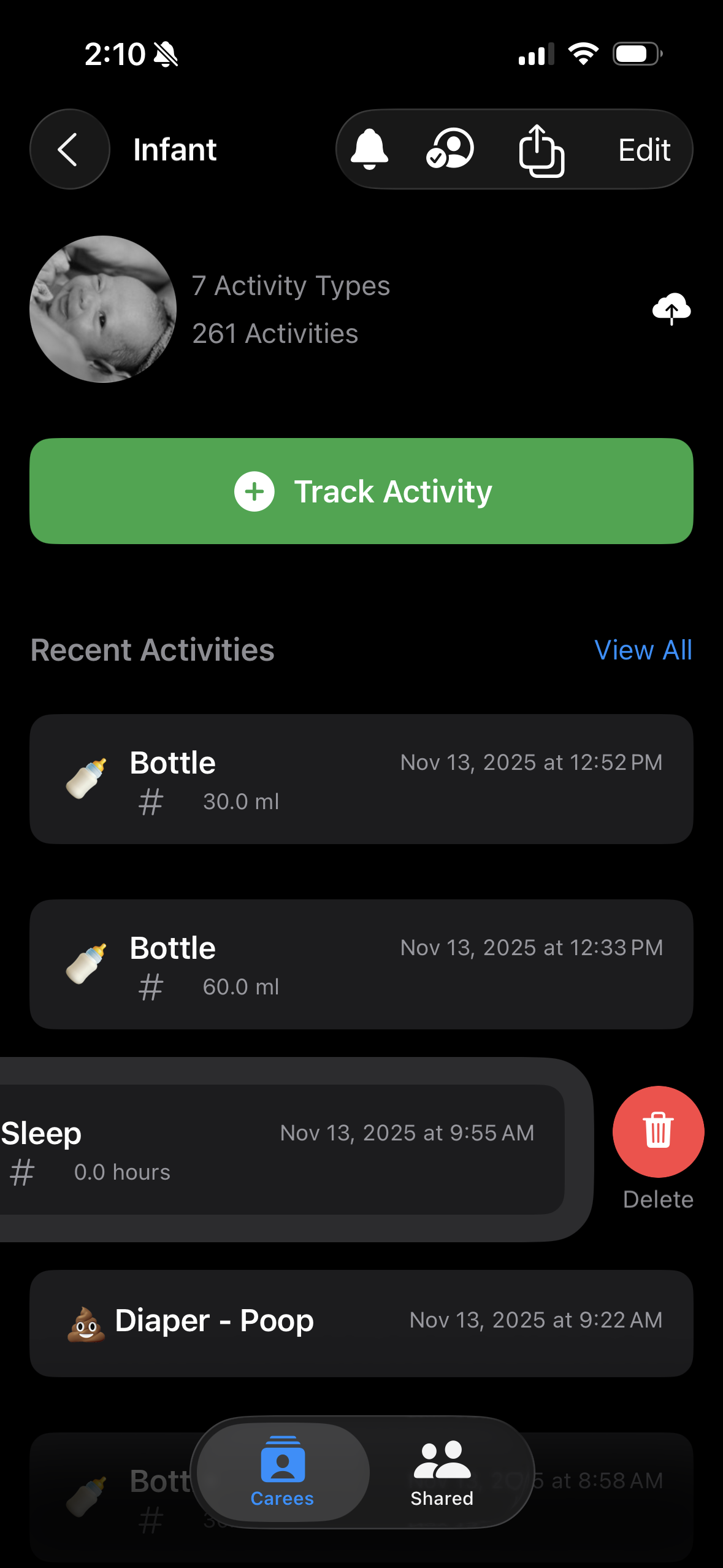
On iPhone
- Open the activity list
- Swipe left on the activity
- Tap Delete
- Confirm deletion
On Watch
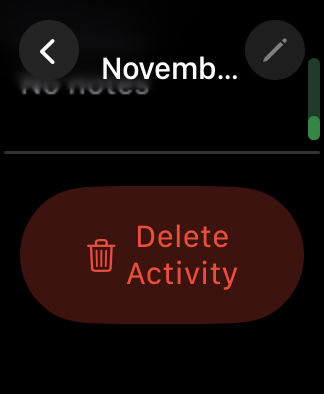
- Open the activity list
- Tap the activity
- Scroll down and tap Delete Activity
- Confirm deletion
Location Not Capturing
- Check that location permission is granted in Settings
- Make sure you're not in airplane mode
- Try toggling "Has Location" off and on for the activity type
Wrong Time Showing
- Check your device's time zone settings
- CareKeeper uses your device's current time
- Edit the activity to correct the time
Activity Not Syncing to Other Devices
- Check internet connection
- Pull down to refresh activity list
- Check sync status indicator in settings
Cannot Edit Activity
- Make sure you're the creator or owner
- Check that you have internet connection (for shared activities)
Best Practices
Quick Tracking Tips
- ⌚ Use watch for frequent activities (feeding, diaper changes)
- 📱 Use iPhone for activities needing notes or editing
- 🕐 Track immediately rather than trying to remember later
- 📝 Only add notes when relevant (don't force it)
Accuracy Tips
- Use custom time for activities you forgot to track
Efficiency Tips
- Reorder activity types to put frequent ones first
- Create keyboard shortcuts for common notes phrases (iOS Settings > General > Keyboard > Text Replacement)
- Use watch complications for instant access