How to Share a Caree
Share a caree with other caregivers to enable collaborative care tracking. All participants can track activities, create activity types, and see real-time updates.
Quick Steps
- Open your caree's detail view
- Tap the Share button (square with up arrow)
- Choose how to send the invitation
- Recipient accepts the share
- Start collaborating!
Before You Start
Requirements
- Owner: Must be signed into iCloud
- Participants: Must be signed into iCloud
- Both: Must have CareKeeper installed
What Gets Shared
When you share a caree, participants can access: - ✅ Caree details (name, photo) - ✅ All activity types - ✅ All activities (past and future) - ✅ Ability to create/edit/delete activities - ✅ Ability to create/edit activity types
What Doesn't Get Shared
- ❌ Your other carees (sharing is per-caree)
- ❌ Your personal settings
- ❌ Ability to delete the caree (owner only)
Sharing a Caree
Step 1: Open Share Options
- Open CareKeeper and tap on your caree
- Tap the Share button in the top-right corner (square with up arrow)
- The iOS share sheet appears
[SCREENSHOT: Share button location in caree detail view]
Step 2: Choose Share Method
You can share via:
Messages
- Tap the Messages icon
- Select a contact or enter a phone number
- Tap Send
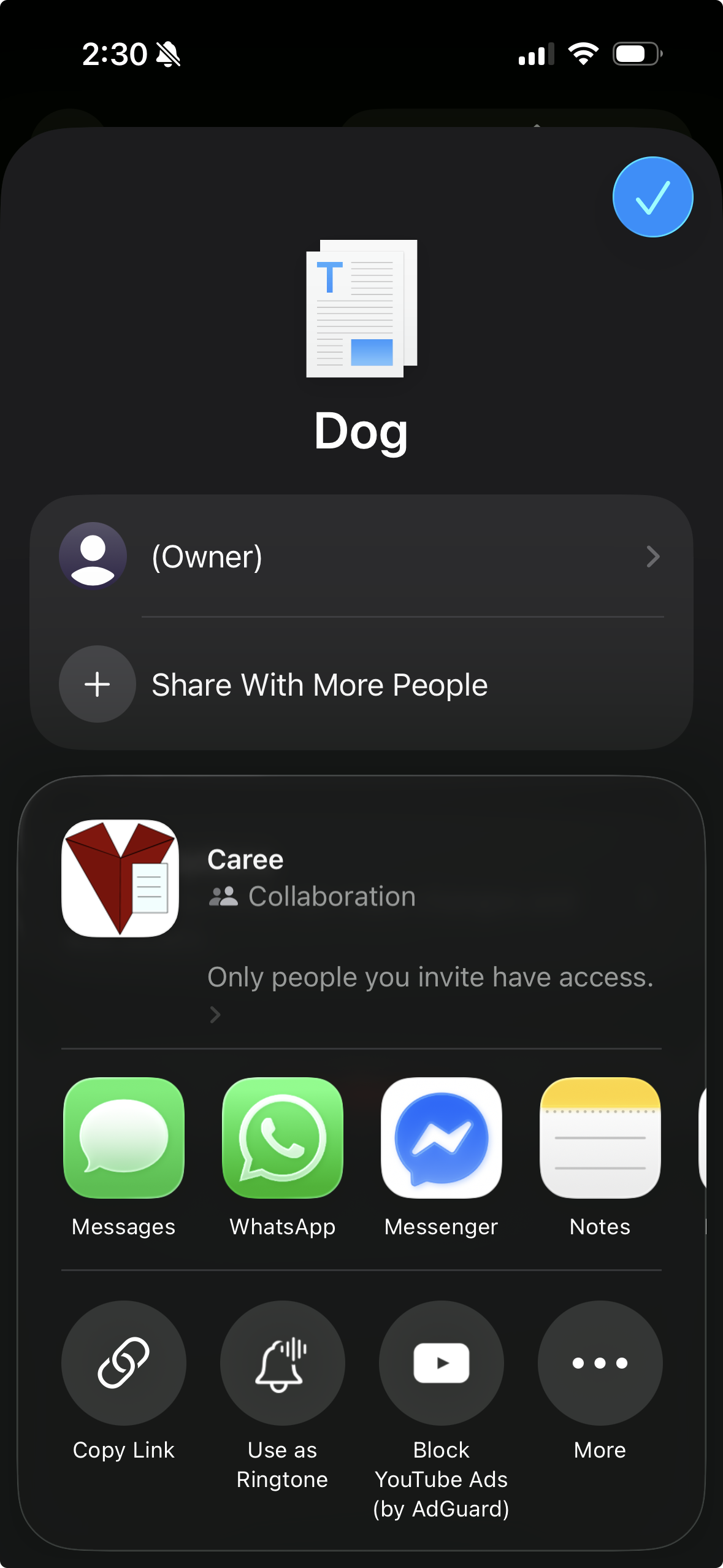
Copy Link
- Tap Copy Link
- Paste the link in any app (WhatsApp, Slack, etc.)
Multiple Participants
You can share with multiple people—just send the share link to each person individually.
Step 3: Confirmation
After sending: - The share is active immediately - Participants can accept at their convenience
Accepting a Share
As a Recipient
When you receive a share invitation:
- Tap the share link in Messages, Mail, or other app
- CareKeeper opens automatically
- Tap Accept to join
[SCREENSHOT: Share acceptance screen]
Instant Access
Once you accept, all activity types and history for the caree are fetched and cached for offline access. This may take a moment.
Managing Participants
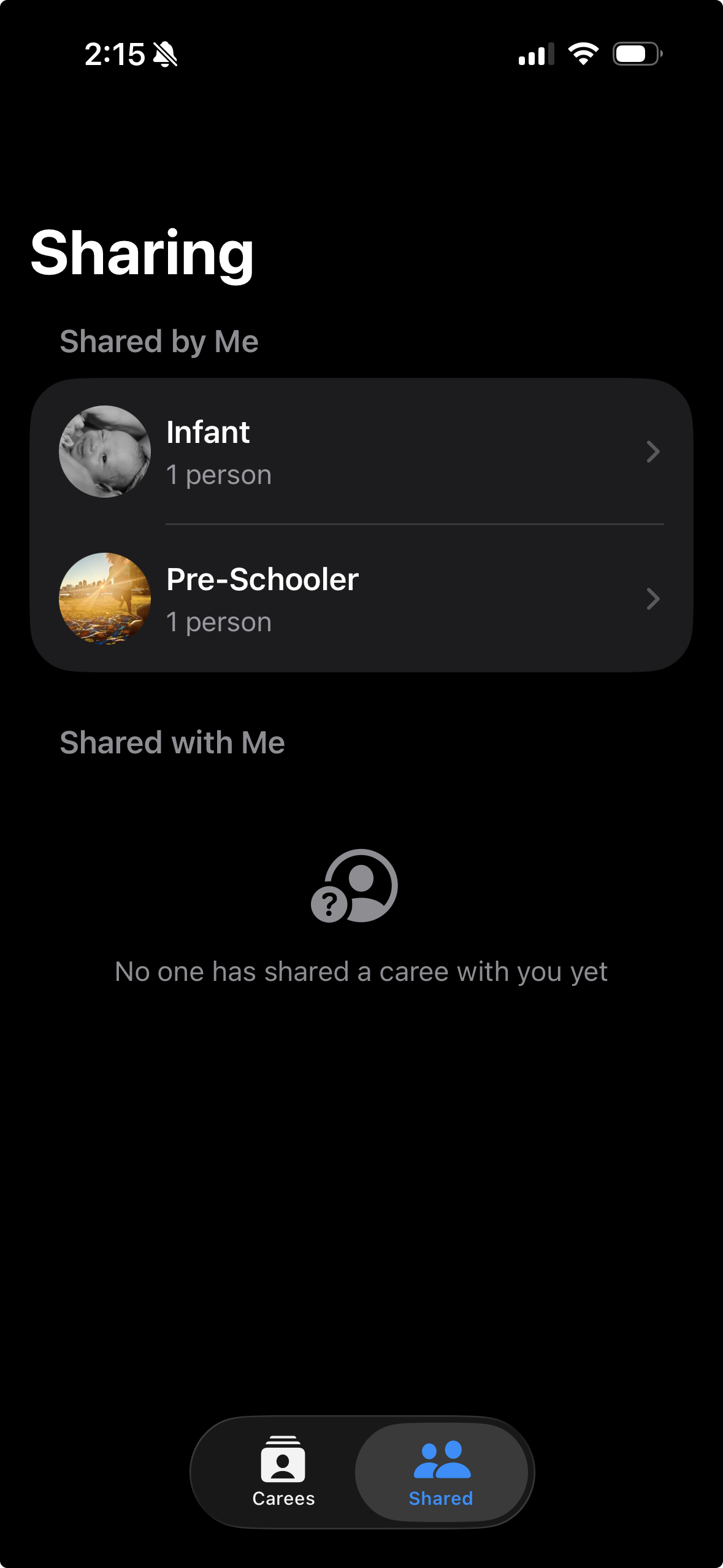
Viewing Participants
To see who has access to a caree:
- Open the caree detail view
- Tap the Share button
- Scroll down to see "People" section
- All participants are listed with their names and icons
Removing a Participant
As the owner, you can remove participants:
- Open the share sheet
- Tap the participant's name
- Tap Remove Access
- Confirm removal
Immediate Effect
Removing a participant takes effect immediately. They lose access to the caree, activity types, and activities.
Leaving a Shared Caree
As a participant (non-owner), you can leave:
- Open the caree detail view
- Open the share sheet
- Scroll down and tap Stop Sharing
- Confirm
Understanding Permissions
Owner Permissions
As the person who created and shared the caree, you can: - ✅ Create, edit, delete activities - ✅ Create, edit, delete activity types - ✅ Edit caree details (name, photo) - ✅ Delete the caree - ✅ Add or remove participants - ✅ Stop sharing entirely
Participant Permissions
As someone who accepted a shared caree, you can: - ✅ Create, edit, delete activities - ✅ Create, edit, delete activity types - ✅ Edit caree details (name, photo) - ❌ Cannot delete the caree (owner only) - ❌ Cannot manage other participants
Equal Tracking Rights
All participants have the same ability to track and manage activities. This enables true collaborative care without restrictions.
Notifications
Stay informed about activities logged by other caregivers:
Enabling Notifications
- Open Settings (gear icon)
- Tap Notifications
- Grant notification permission if prompted
- Enable notifications per caree
[SCREENSHOT: Notification settings]
What You'll Be Notified About
You'll receive notifications when: - Another caregiver tracks an activity - Someone creates a new activity type - Caree details are updated
You won't be notified about: - Your own activities - Carees you haven't enabled notifications for
[SCREENSHOT: Example notification]
Managing Notification Settings
Per-Caree Control: 1. Open caree detail view 2. Tap the bell icon 3. Toggle notifications on or off
[SCREENSHOT: Per-caree notification toggle]
Global Settings: - Turn off all notifications in iOS Settings > CareKeeper > Notifications
Best Practices
Communication Tips
- 📋 Agree on activity type names and units
- 👥 Share only with trusted caregivers
Privacy Tips
- 🔒 Only share with people who need access
- 👤 Use caree photos that all participants are comfortable with
- 📍 Discuss location tracking preferences
- 🚫 Remove participants who no longer need access