How to Export Your Data
Export your CareKeeper data to JSON format for backup, analysis, or migration to other systems. This guide covers the export process and what you can do with your data.
Quick Steps
- Open CareKeeper on iPhone
- Tap Settings (gear icon)
- Scroll to "Data Management"
- Tap Export Data
- Choose a caree or export all
- Save or share the JSON file
Why Export Data?
Backup
- Create a local backup of your tracking data
- Protect against data loss
- Archive old data before deleting
Privacy
- Keep a copy of your data outside of iCloud
- Delete from CareKeeper while keeping records
- Control your own data
Analysis
- Import into spreadsheets (Excel, Numbers, Google Sheets)
- Create custom charts and reports
- Analyze patterns over time
Exporting Data
Step 1: Open Export Settings
- Open CareKeeper on your iPhone
- Tap the kebab icon ("..."") in the top-right
- Tap Export Data
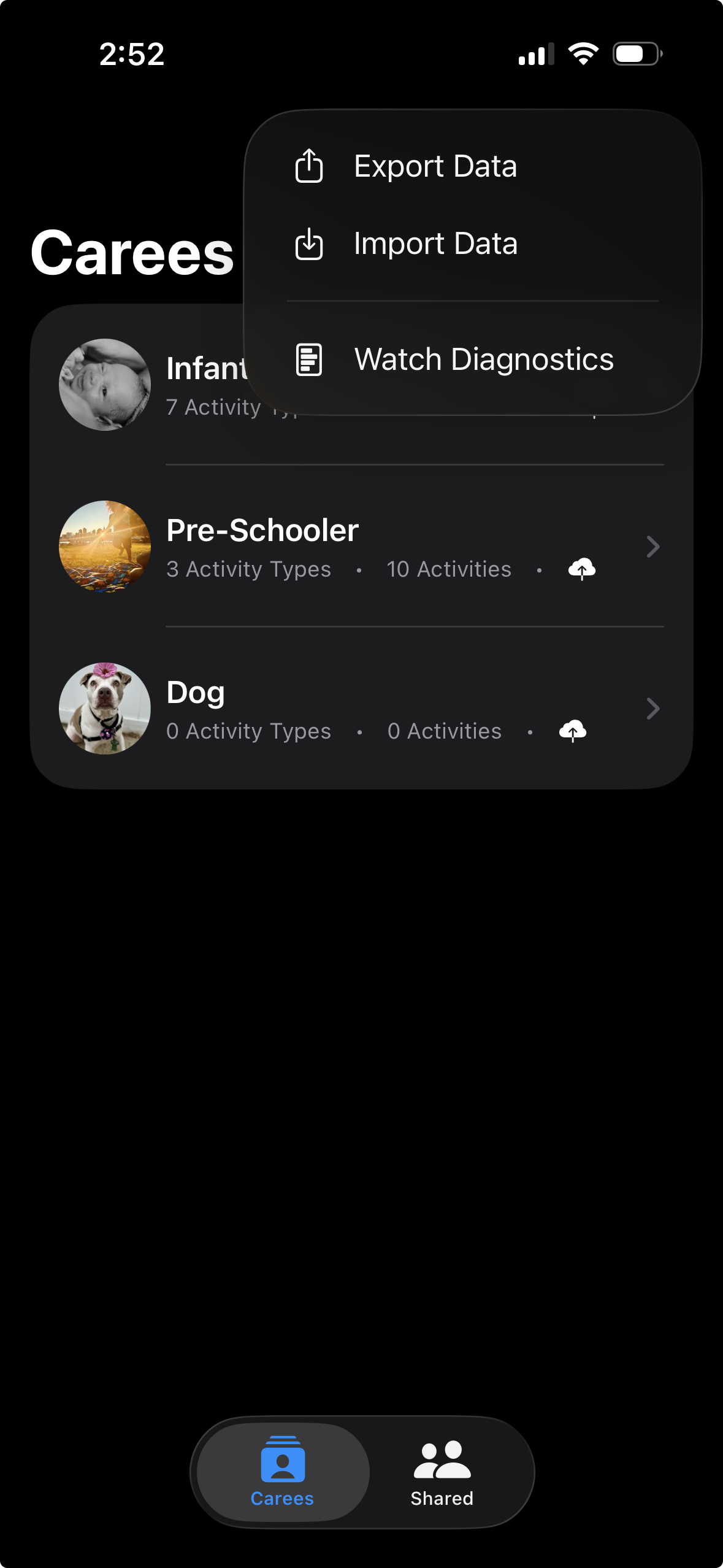
Step 2: Choose What to Export
You have two options:
Export All Data
- Includes all carees
- All activity types for each caree
- All activities across all carees
- Largest file size
- Most comprehensive backup

Export Single Caree
- Navigate to the caree's detail change and tap the export icon
- Includes only that caree's activity types and activities
- Smaller file size
- Useful for sharing with specific caregivers or providers
Step 3: Export Process
- Tap your choice (All Data or specific caree)
- CareKeeper prepares the export (may take a few seconds for large datasets)
- The iOS share sheet appears
- Choose where to save or how to share
Step 4: Save or Share
Choose from these options:
Save to Files
- Tap Save to Files
- Choose a location (iCloud Drive, On My iPhone, etc.)
- Tap Save
Other Options
- Save to cloud services (Dropbox, Google Drive, OneDrive)
- Share to messaging apps
- Copy to Notes app
Understanding the Export Format
JSON Structure
CareKeeper exports data as JSON (JavaScript Object Notation)—a standard, human-readable format:
{
  "carees": [
    {
      "activities": [
        {
          "activityTypeID": "2850FEE9-45CE-4E7C-9FF4-A12446EA7FCA",
          "dateCreated": "2025-11-11T18:56:14Z",
          "dateTime": "2025-11-11T18:56:14Z",
          "id": "82C581B5-6652-497B-9F12-38835E247DB9"
        }
      ],
      "activityTypes": [
        {
          "dateCreated": "2025-10-28T03:43:45Z",
          "hasLocation": false,
          "hasQuantity": false,
          "icon": "💩",
          "id": "2850FEF9-45CF-4E7C-9FF4-A12446EA7FCA",
          "listOrder": 2,
          "name": "Diaper - Poop"
        }
      ],
      "dateCreated": "2025-10-28T03:46:17Z",
      "id": "ACA13710-4B2D-4315-94DF-C3D649F0D739",
      "imageData": "\/9j\/4AAQSkZJRgABAQAASABIAAD\/...",
      "listOrder": 2,
      "name": "Newborn"
    }
  ],
  "exportDate": "2025-11-11T23:23:10Z",
  "version": "2.0"
}
What's Included
Caree Data: - ID (unique identifier) - Name - Date created - Profile photo (base64 encoded if present)
Activity Type Data: - ID (unique identifier) - Name - Icon (emoji or SF Symbol name) - Quantity settings (hasQuantity, quantityUnit) - Location settings (hasLocation) - List order - Date created
Activity Data: - ID (unique identifier) - Activity type reference - Date and time - Quantity (if applicable) - Location coordinates (if applicable) - Notes (if present) - Date created
What's NOT Included
The following are not included in exports: - CloudKit sharing metadata (participant lists, share IDs) - Sync status information - User notification preferences - Other users' carees (only your own)
Using Exported Data
Import into Spreadsheet
To analyze in Excel, Numbers, or Google Sheets:
- Use a JSON-to-CSV converter tool:
- Online: ConvertCSV.com
- Desktop: jq command-line tool
- Python: pandas library
- Convert JSON to CSV format
- Open CSV in your spreadsheet app
Import into Another App
If migrating to another tracking app:
- Check if the other app supports JSON imports
- Map CareKeeper fields to their fields:
- caree.name → their subject/person field
- activityType.name → their category/type field
- activity.dateTime → their timestamp field
- Use their import tool or API
Create Custom Reports
With programming knowledge, you can:
Python Example:
import json
import pandas as pd

# Load export
with open('carekeeper_export.json') as f:
    data = json.load(f)

# Extract activities
activities = []
for caree in data['carees']:
    for activity in caree['activities']:
        if "quantity" not in activity:
            continue

        activities.append({
            'caree': caree['name'],
            'type': next(at['name'] for at in caree['activityTypes'] if at['id'] == activity['activityTypeID']),
            'dateTime': activity['dateTime'],
            'quantity': activity.get('quantity'),
            'notes': activity.get('notes')
        })

# Create DataFrame
df = pd.DataFrame(activities)

# Analyze
print(df.groupby('type')['quantity'].mean())
Archive Old Data
For long-term archival:
- Export all data
- Save to multiple locations:
- External hard drive
- Cloud storage (Google Drive, iCloud)
- USB drive
- Include a README explaining the data structure
- Store in a folder with date:
CareKeeper_Backup_2024-10-27
Best Practice
Export and backup your data monthly, especially if you're tracking critical medical information.
Importing Data (Re-Import)
Import Backup into CareKeeper
To restore a previous export:
- From the Carees page, open the kebab menu (the "..."s button)
- Tap Import Data
- Choose the JSON file
- CareKeeper restores:
- Carees
- Activity types
- Activities
Privacy & Security
Data Privacy
- Exported files contain all your tracking data
- Share carefully—only with trusted parties
- Consider removing sensitive notes before sharing
- Delete exported files from shared locations when no longer needed
Encryption
- JSON exports are not encrypted by default
- If sharing via email/cloud, consider encrypting the file
- iOS Files app supports encryption via zip with password