How to Create an Activity Type
Activity types are the building blocks of tracking in CareKeeper. This guide covers all options for creating and customizing activity types.
Quick Steps
- Open your caree's detail view
- Tap + Add Activity Type
- Configure name, icon, and tracking options
- Tap Save
Detailed Instructions
Open Activity Type Creation
- Open CareKeeper and tap on a caree
- In the "Activity Types" section, tap + Add Activity Type
- You'll see the activity type form
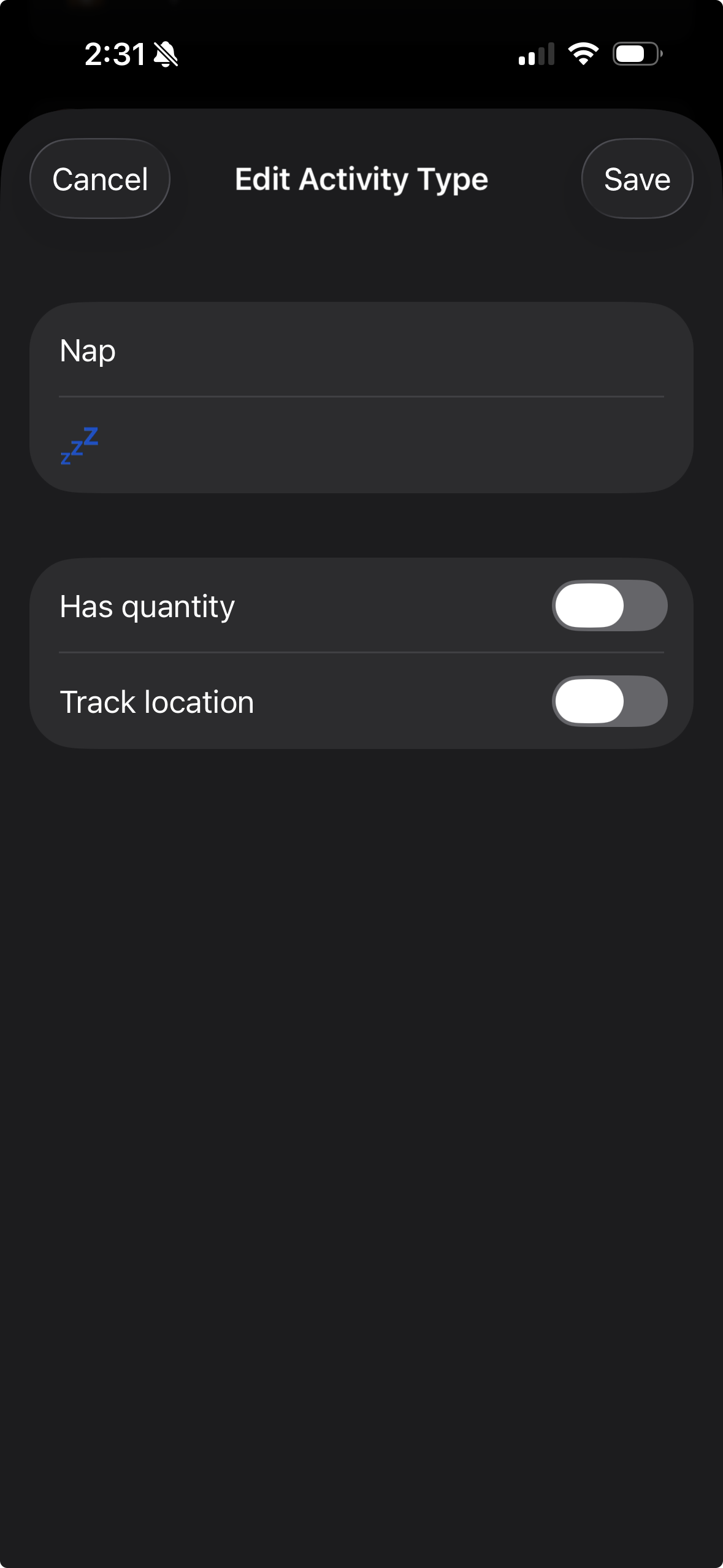
Choose a Name
- Tap the Name field
- Enter a clear, descriptive name (e.g., "Feeding", "Walk", "Playtime")
- Keep it short for better display on watch
Naming Best Practices
- Keep under 20 characters for watch compatibility
Select an Icon
Icons help you quickly identify activity types. You can use:
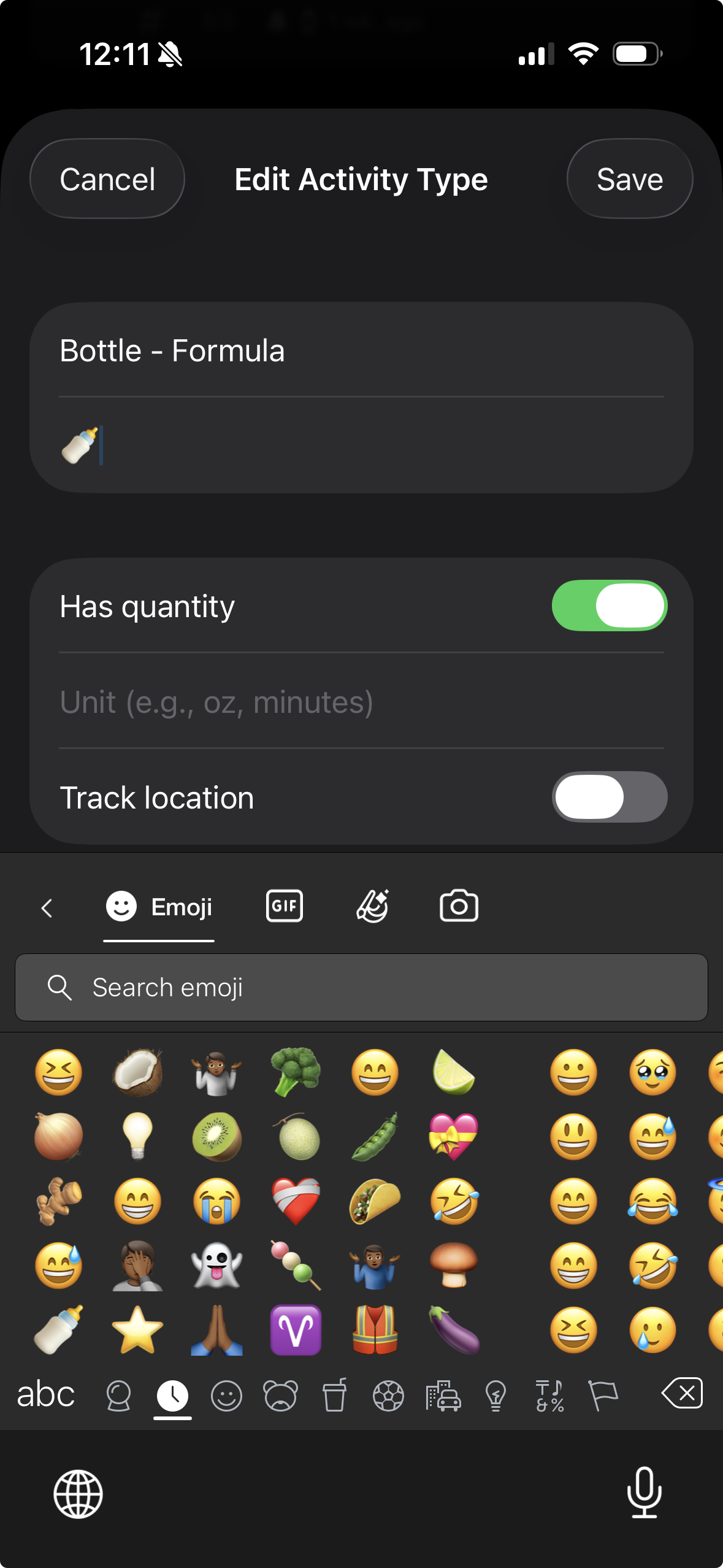
Emojis
- Tap the Icon field
- Your emoji keyboard appears
- Select any emoji (🍼, 😴, 🚶, etc.)
SF Symbols
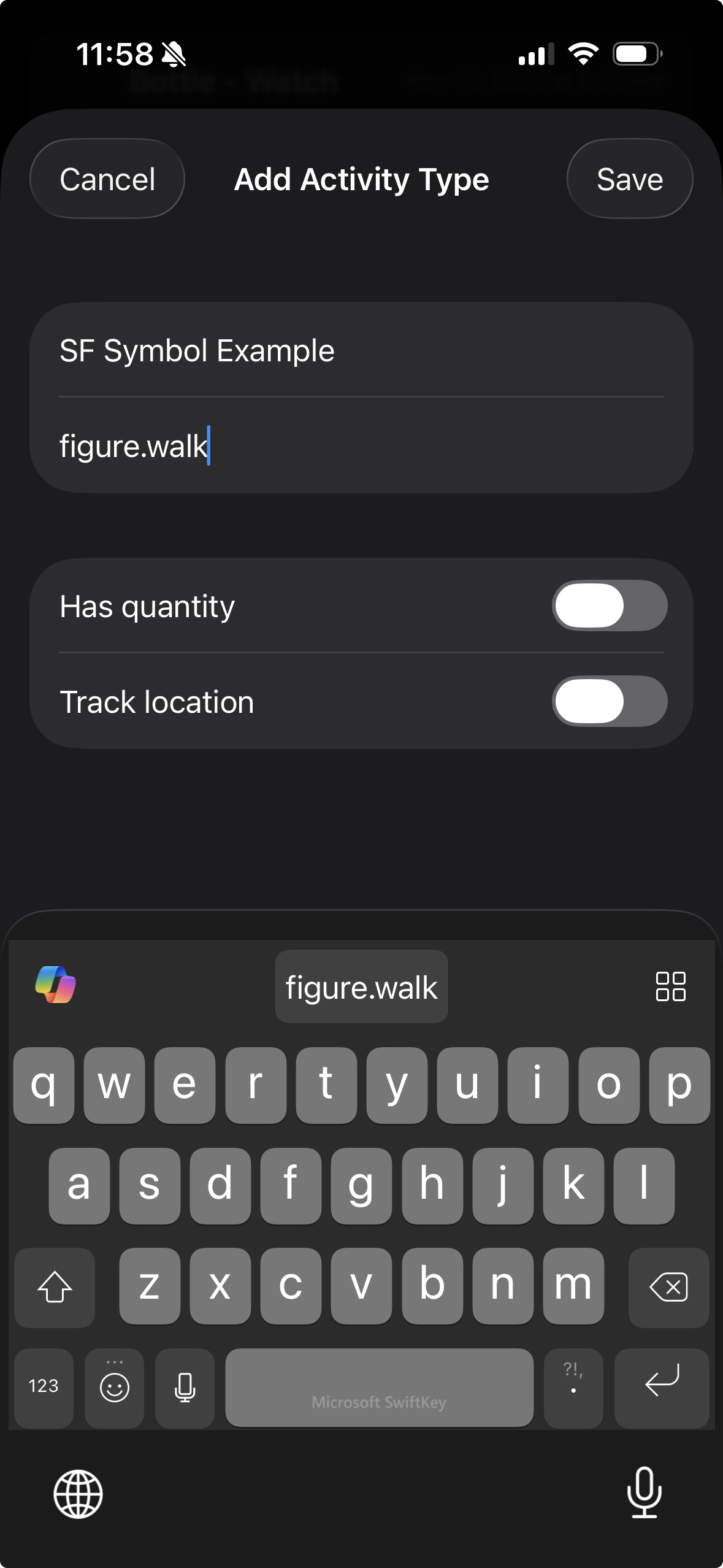
- Tap the Icon field
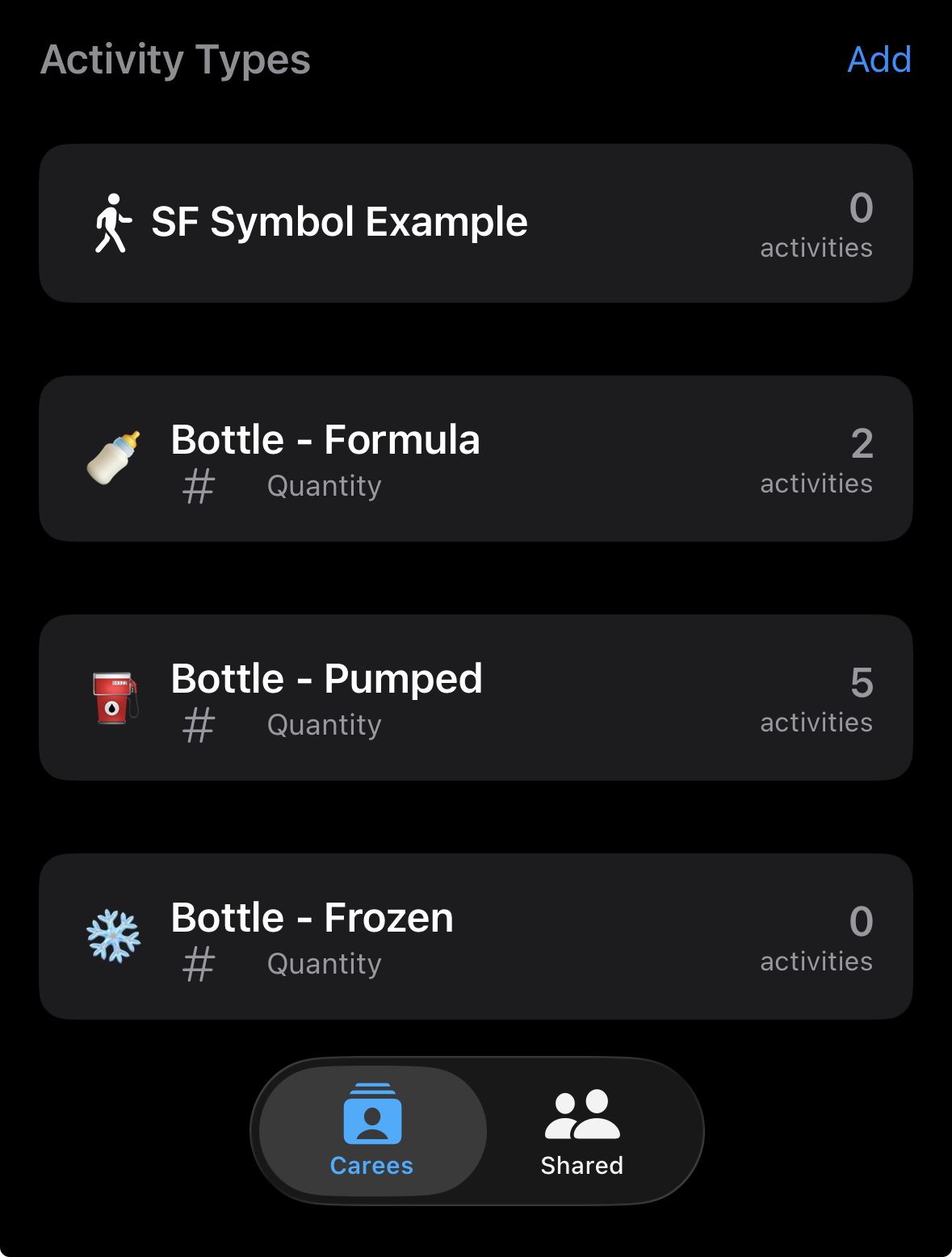
- Type an SF Symbol name (e.g., "drop.fill", "figure.walk")
SF Symbols
SF Symbols are Apple's icon library. Search for symbols at sf-symbols.com or use common names like:
- Activity: figure.walk, figure.run, sportscourt.fill
- Food: fork.knife, cup.and.saucer.fill, drop.fill
- Sleep: bed.double.fill, moon.fill
- General: checkmark.circle.fill, star.fill
Configure Quantity Tracking
Enable this if you want to record amounts (e.g., ounces, milliliters, minutes):
- Toggle Has Quantity to ON
- Enter a Unit (e.g., "oz", "ml", "min", "cups")
- This unit will appear when tracking activities
Examples of Quantity Use
| Activity Type | Quantity | Unit |
|---|---|---|
| Bottle feeding | 3.5 | ml |
| Nursing | 15 | min |
| Walk | 30 | min |
| Water | 8 | oz |
| Sleep | 120 | min |
Decimal Values
Quantities support decimals, so you can track "3.5 oz" or "1.5 hours" precisely.
Configure Location Tracking
Enable this to record where activities occurred:
- Toggle Has Location to ON
- CareKeeper will request location permission if not granted
- When tracking, your current location is automatically captured
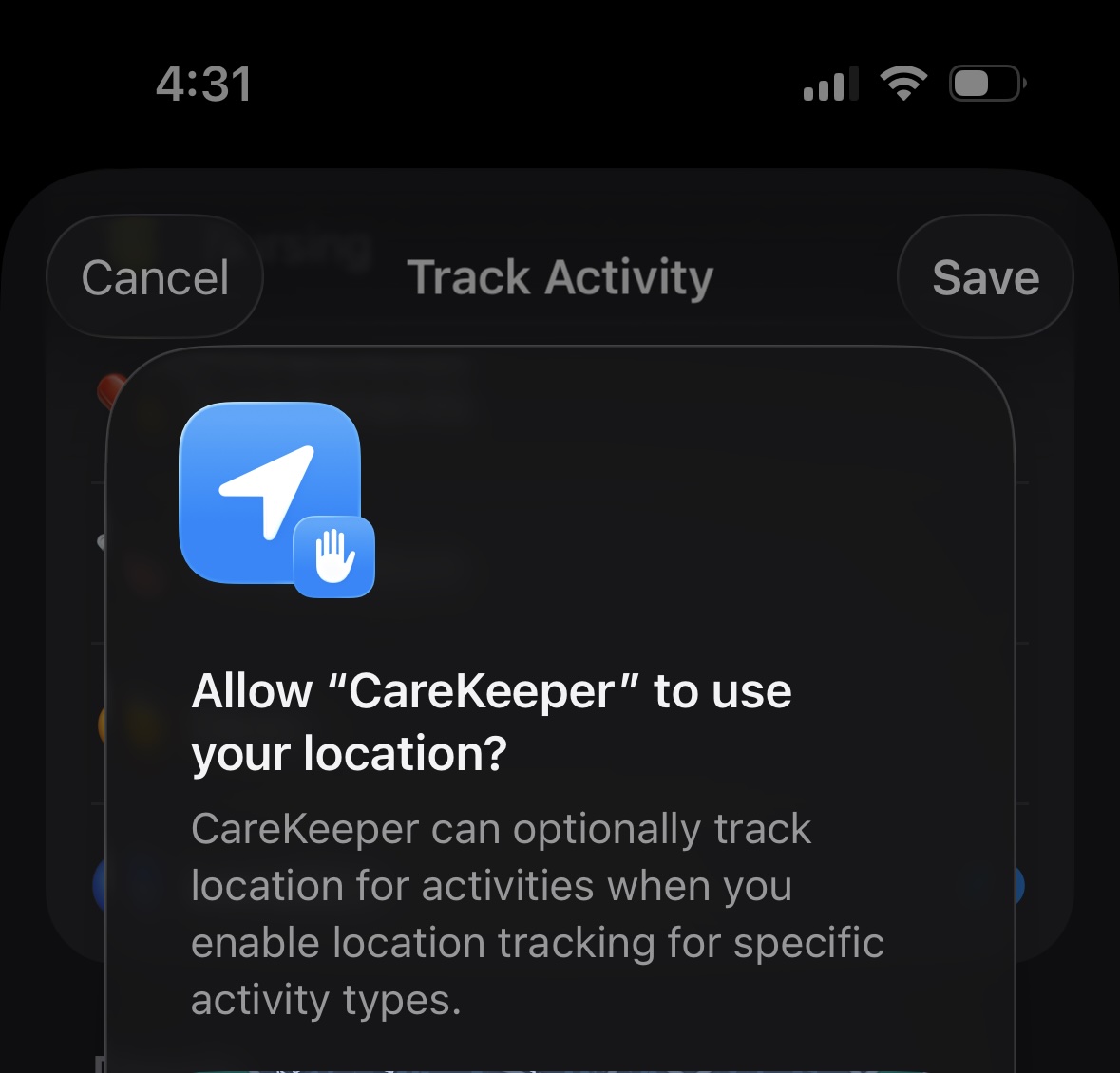
Single point locations
- Locations are stored as a single point rather than a route/trail
Privacy Note
Locations are synced via iCloud and visible to anyone you share the caree with. Only enable for activity types where location adds value.
Save Your Activity Type
- Review your configuration
- Tap Save in the top-right corner
- The activity type appears in your list
Editing Activity Types
To modify an existing activity type:
- Open the caree detail view
- Find the activity type in the list
- Tap to edit
- Make your changes
- Tap Save
Deleting Activity Types
Permanent Deletion
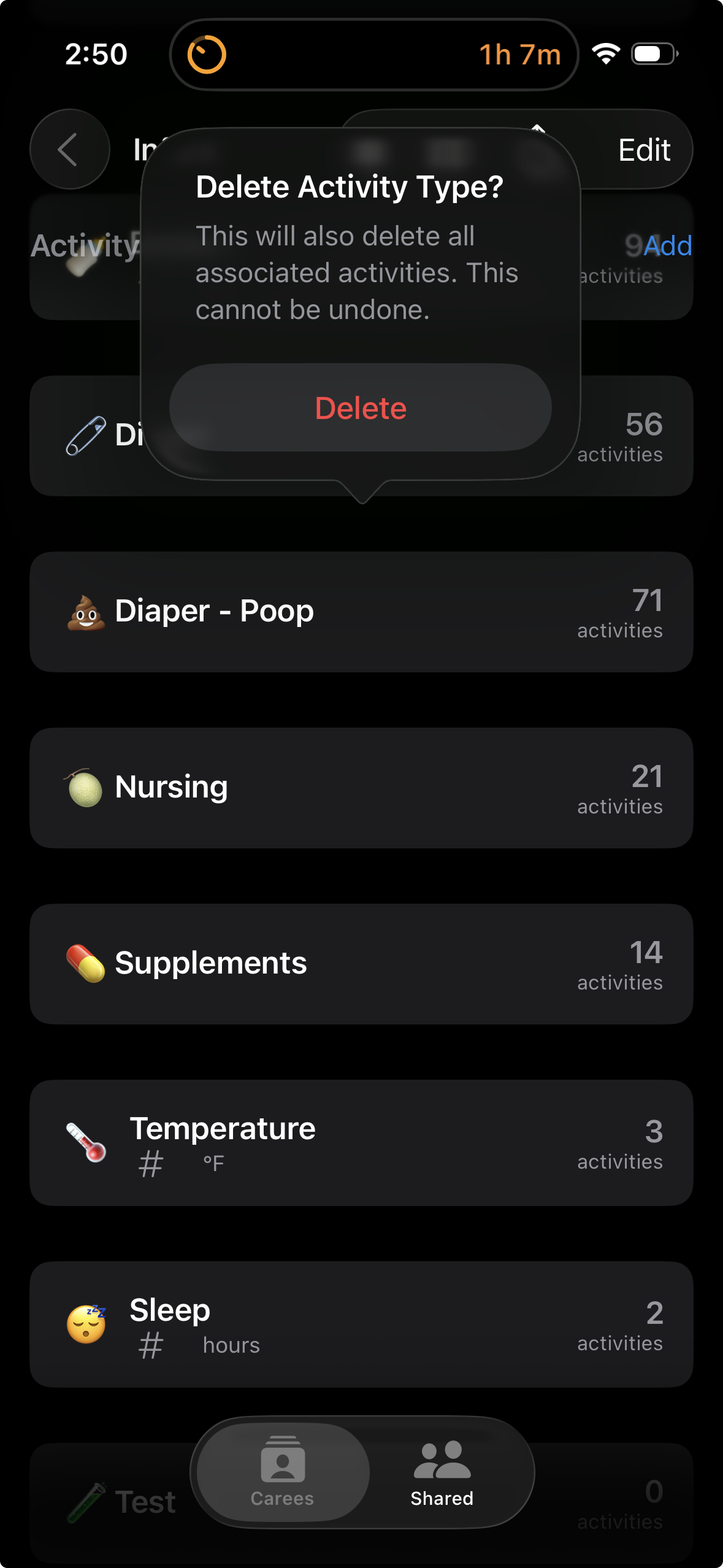
Deleting an activity type also deletes all activities of that type. This cannot be undone.
- Swipe left on the activity type
- Tap Delete
- Confirm the deletion
Reordering Activity Types
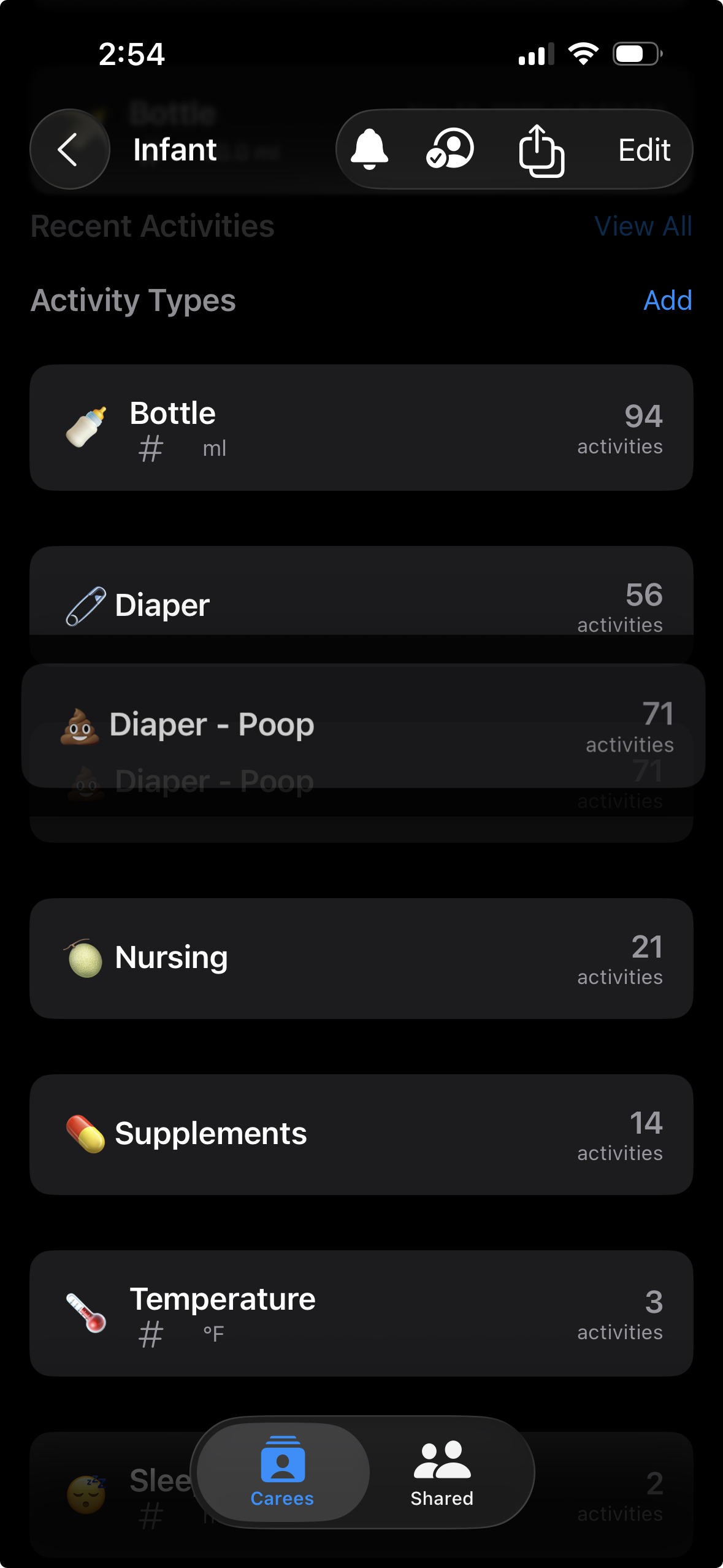
Set the order for easier access:
- Tap Edit in the Activity Types section
- Drag the ☰ handle to reorder
- Tap Done
Optimize for Watch
Put frequently-used types at the top. The watch app shows them in the same order.
Troubleshooting
Icon Not Showing
- If using SF Symbol, verify the name is correct
- Try using an emoji instead for simplicity
- Leave blank to use default icon